
Reconcile Open Balance with the Diagnostic Report
Last updated on Aug 28, 2026
Use the Open Balance Diagnostic Report to reconcile your Open Balance amounts against the Transactions that offset them, and spot variances between the two. When the variance is in ARR or MRR rather than balance, see Fix ARR/MRR Mismatch in Transactions.
How the report works
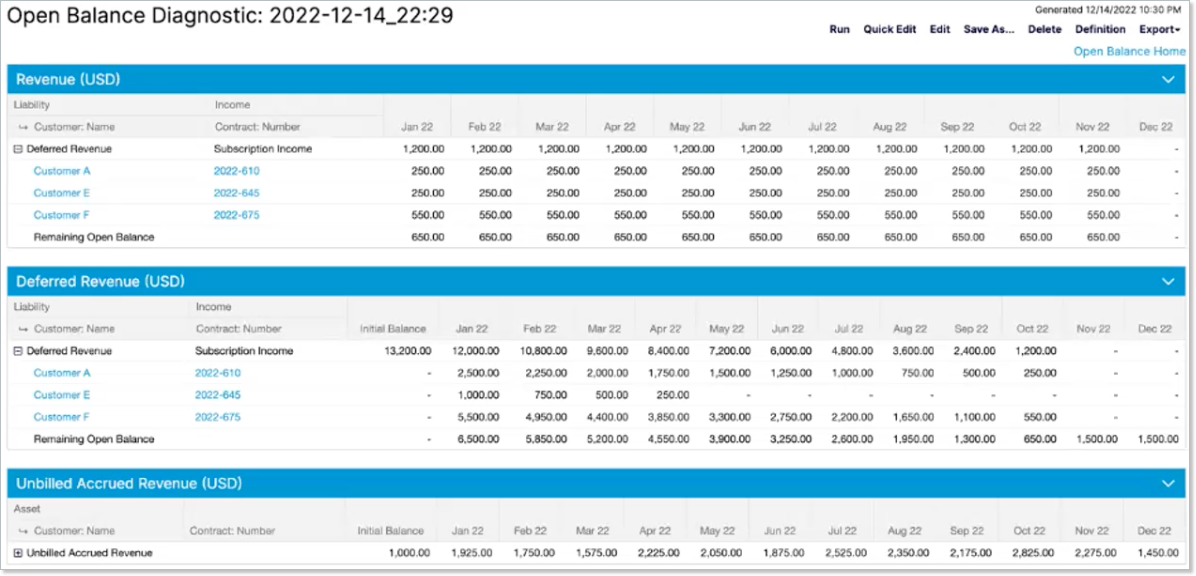
After you enter an Open Balance by account, you can add Transactions against those balances to get more detailed historical information. These balances and Transactions can also be seen in the Advanced Revenue Summary Report, but that report doesn't isolate Open Balance amounts and their related Transactions from the rest of your data unless you set its Open Balance Handling option to Only Open Balance. This is why the Open Balance Diagnostic Report exists: to make it easier to confirm that the Transactions created are matching the balances originally entered.
This report summarizes your Open Balance amounts, grouped by Income and Liability account pairing for Revenue and Deferred Revenue, or by Asset account alone for Unbilled Accrued Revenue, against the Transactions allocated to each group. A Transaction is matched to a group based on its Item's configured accounts.
Create the report
After you configure the Open Balance with at least one Revenue, Deferred Revenue, or Unbilled Accrued Revenue plan entry, you're ready to create this report.
To create the Open Balance Diagnostic Report
- Navigate to Reports > Add Report.
- Under Finance Reports, click Open Balance Diagnostic Report.This opens the report builder, where you configure Register, Date Range, and Group By options the same way as other reports in the system. Date Range is limited to the date range you set when configuring Open Balance.
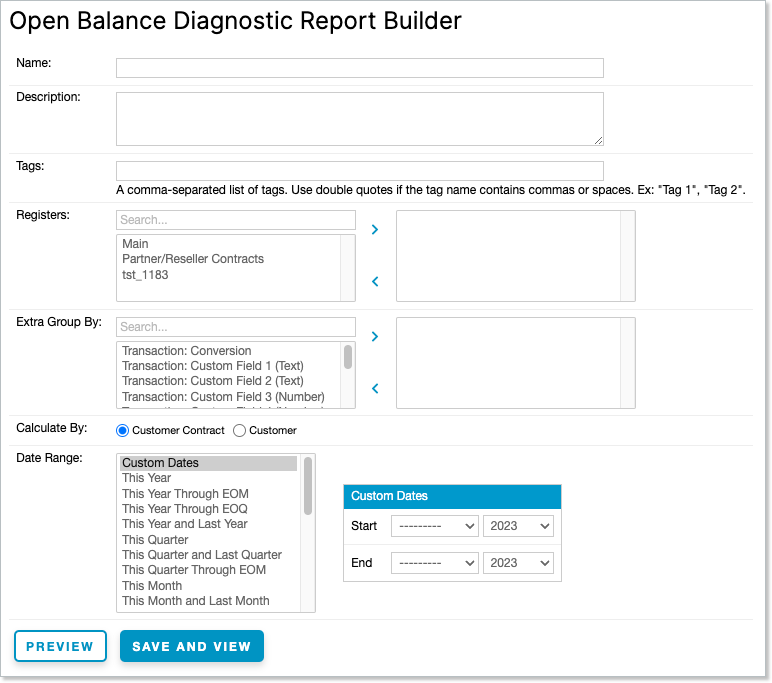
- Click View to preview the report, or Save and View to save it and run it.
Still need help?
Reach out and our support team will take it from here.