
Configure the Advanced Revenue Summary Report
Last updated on Sep 11, 2026
Use these settings to control which Revenue Book and accounts the Advanced Revenue Summary Report runs on, how it calculates and groups Deferred Revenue and Unbilled AR, and how the results display. For an overview of what the report itself covers, see Understand the Advanced Revenue Summary Report.
NEW
Once the report is configured, you can post its consolidated journal entries straight to your connected general ledger with Advanced Revenue Summary GL Sync, on demand or on a schedule. See Understand Advanced Revenue Summary GL Sync for what syncs and how it works, and Set Up Advanced Revenue Summary GL Sync to connect it.
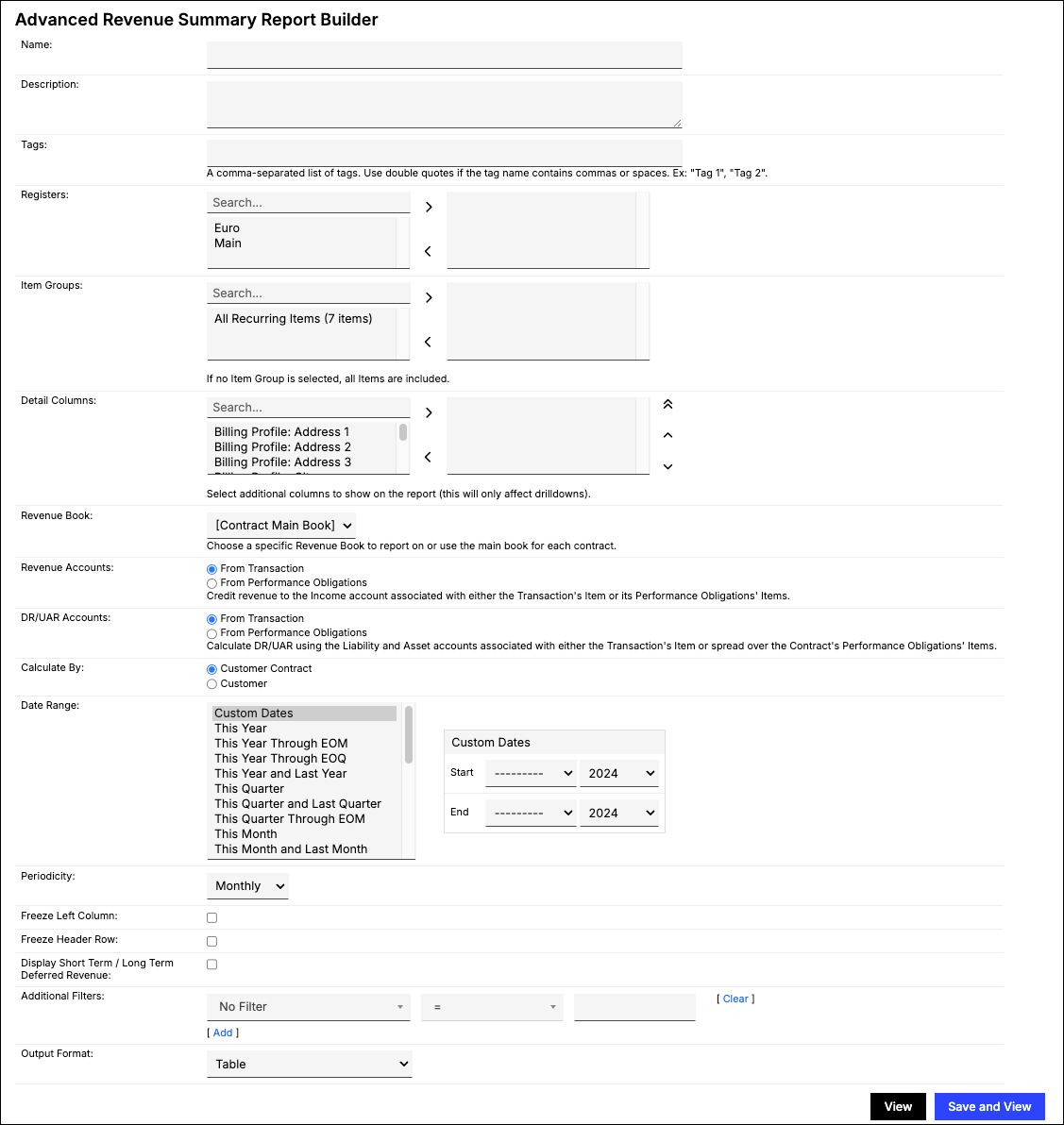
Configure options
Go to Reports > Add Report > Finance Reports > Advanced Revenue Summary to open the report builder. The Advanced Revenue Summary Report includes the settings below.
| Option | Description |
|---|---|
| Revenue Book | Select the Revenue Book to report on. You can use the Main Revenue Book set on each Contract ([Contract Main Book]) or select a specific Revenue Book. Check Also limit invoices and transactions to this revenue book to restrict which Contracts, Invoices, and Transactions are included in the report to only those with revenue recognized in the selected Revenue Book. If left unchecked, the Revenue Book filter only applies to revenue entries. Revenue Book settings require advanced revenue recognition to be enabled on your account. |
| Revenue Accounts | Determines whether revenue is credited to the Income account associated with the Transaction's Item, or the Income account associated with its Performance Obligations' Items. If you're a RevenueBooks-enabled customer, select From Performance Obligations. If you don't have RevenueBooks enabled, select From Transaction. |
| DR/UAR Accounts | Calculate the Deferred Revenue (DR)/Unbilled AR (UAR) using the Liability and Asset accounts associated with either the Transaction's Item or spread over the Contract's Performance Obligations' Items. |
| Display Short Term / Long Term Deferred Revenue | Select whether to separate your Deferred Revenue balances based on their short-term or long-term classification. When enabled, this adds Current Deferred Revenue and Long Term Deferred Revenue rows to the report, and the combined total is labeled Total Deferred Revenue. |
| Filter On | Choose whether to scope the report by Accounts, Items, or Item Groups, then select one or more of the chosen type. If none are selected, all are included. The Item Groups option only appears if your account has Item Groups defined. |
| Calculate By | Select how the report calculates and groups revenue balances.
|
| Drilldown Columns | Controls which fields appear when you drill into report details. These selections affect the drill-down view only; they don't change the high-level report totals. Drilldown totals may differ from high-level report totals when selected drilldown fields create additional rows at a more granular level. Review your Drilldown Columns if the detail view doesn't match the summary totals. When you drill into Recognizable Revenue for Period, Maxio automatically adds Transaction: Number to your selected drilldown columns, after Contract: Number (or before Item: Name if you calculate by Customer and Account), up to the report's 10-column limit. This keeps Transactions from collapsing into a single row in the drill-down view, so you can see recognized revenue at the individual Transaction level. |
| Date Range | Select fixed Custom Dates or from one of the date range options. |
| Periodicity | Columns appear for each of the following periods within the Date Range specified above:
|
| Currency Presentation | Controls how the report presents currency amounts. If your account has Enable CTA turned on, choose from Home Currency, Single Local Currency, or FX Restated Reporting. Selecting FX Restated Reporting also requires Reporting Currency, below. If Enable CTA is off, choose from Home Currency or Local Currency instead. Reporting across Registers requires Home Currency; Local Currency requires at least one Register, and all selected Registers must use the same currency. This setting doesn't appear if your account doesn't have multicurrency enabled. |
| Reporting Currency | The specific currency to convert and restate all report amounts into. Only appears, and is only required, when Currency Presentation is set to FX Restated Reporting. |
| Registers | Select one or more Registers to scope the report to. If none are selected, all Registers are included. |
| Contract / Customer Filters | Select one or more filters and appropriate matching criteria to filter in or out relevant Transactions and or Invoice Line Items. |
| Output Format | Choose whether the report displays as a Table or as a chart. Stacked Vertical Bar Chart is the recommended chart type; Line Chart, Stacked Area Chart, Vertical Bar Chart, Horizontal Bar Chart, and Stacked Horizontal Bar Chart are also available. |
| Segment Charts by Account | When a chart Output Format is selected, splits the chart into separate segments per Account. |
| Freeze Left Column / Freeze Header Row | Two independent checkboxes that keep the leftmost column or the header row visible while you scroll the report table. |
| Open Balance Handling | Select whether the report includes the Account-level summary totals entered in the Open Balance builder: Include Open Balance, Exclude Open Balance, or Only Open Balance. Exclude Open Balance is the default. Only appears if your account has the Open Balance feature enabled. |
| Multi-Site / Instances to Include | Enables consolidated reporting across more than one Business Entity instance. Selecting one or more Instances to Include is required when Multi-Site is checked (only one instance per Business Entity is allowed). Only available on accounts with more than one Business Entity instance and the Multi-Entity feature enabled, and requires Enable CTA. Maxio automatically sets Currency Presentation to FX Restated Reporting when Multi-Site is checked. |
| Include Accruals for Usage Data | Includes accrual amounts for usage-based billing data in the report. Only appears on accounts with usage accrual enabled. |
Related information
This setting affects how Deferred Revenue and Unbilled AR are calculated when a Customer has more than one Contract; for more detail, see Understand Finance Report Results.
Still need help?
Reach out and our support team will take it from here.