
Create Products
Last updated on Aug 29, 2026
A Product is the plan a customer subscribes to, and it carries the settings that govern that subscription: whether a payment method is required, how tax is applied, and which addresses you collect at signup. Its pricing lives on a separate object, the Product Price Point, so creating a sellable Product means creating both.
Create Product Create Product Price Point
Summary - Create a product
- Feature
- Product
- You Need
- Access to your company's price book
- Code
- None
- Difficulty
- ◉◎◎◎◎
1. Add product details
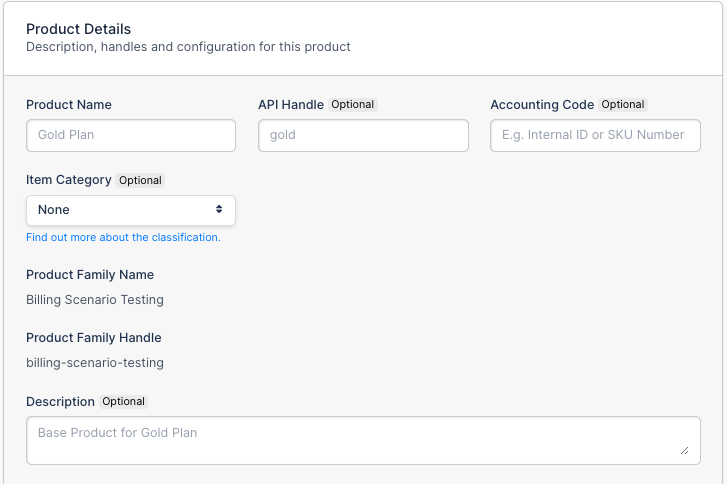
Name the Product and set the identifiers and description that travel with it.
| Field | Description |
|---|---|
| Product Name | (Required) The name of your Product. This shows as a line item on your customer's invoices. |
| API Handle | (Optional) Developers can make API requests to create subscriptions with the API handle. For example, a Create Subscription API call to put a customer on product_handle: gold_plan. |
| Accounting Code | (Optional) A read-only field. |
| Item Category | (Optional) A read-only field. |
| Description | (Optional) A description of your Product. Shows on public signup pages, and doesn't show on customer invoices. |
2. Require payment method
Decide whether a customer must supply a payment method to subscribe.
| Field | Description |
|---|---|
| Require Payment Method | (Required) Controls whether a payment method is required to subscribe to this Product. On a free trial, this controls whether a credit card is needed. Only uncheck this if you offer a no-credit-card free trial. |
3. Enable taxes
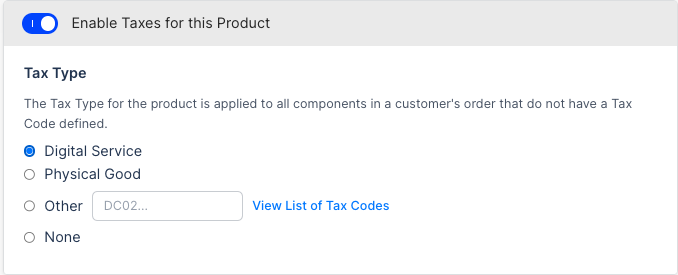
Classify the Product so the right tax code is passed to your tax provider.
| Option | Description |
|---|---|
| Digital Service | If connected to Avalara Managed Sales Tax, the tax code D0000000 is passed to Avalara, denoting a generic digital service. |
| Physical Good | If connected to Avalara Managed Sales Tax, the tax code P0000000 is passed to Avalara, denoting a generic physical good. |
| Other | If connected to Avalara Managed Sales Tax, or to your own Avalara account, a custom tax code can be passed. Find a code at https://taxcode.avatax.avalara.com/. |
| None | No taxes apply to this Product. |
4. Shipping and billing address
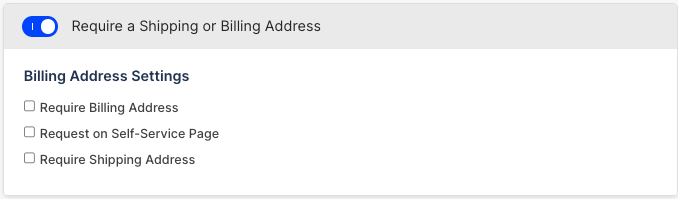
Choose which addresses a customer must supply, and where they are requested.
| Field | Description |
|---|---|
| Require a Shipping or Billing Address | Enable this if a customer must supply one or both addresses to subscribe to this Product. |
| Require Billing Address | (Optional) Requires a billing address at subscription signup. |
| Request on Self-Service Page | (Optional) On a hosted self-service payment update page, the billing address fields show but aren't required. |
| Require Shipping Address | (Optional) Requires a shipping address at subscription signup. |
5. Public signup page
Decide whether Advanced Billing creates a hosted signup page for this Product.
| Field | Description |
|---|---|
| Create Modern v2 Public Signup Page | Auto-creates a hosted payment page. Only uncheck this if you accept signups via API or CRM only, and don't want a publicly available signup page. |
6. Enable URL and return parameters for hosted self-service pages
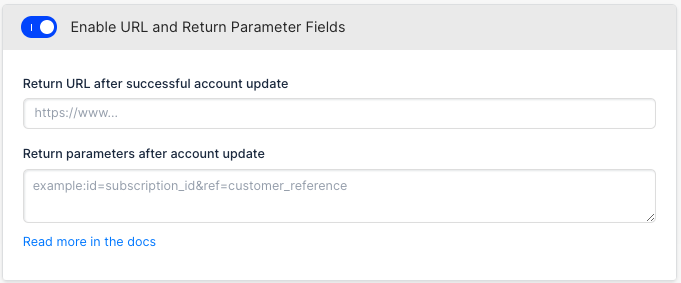
Set where a customer lands after updating their payment method on a hosted page.
| Field | Description |
|---|---|
| Return URL | (Optional) If you use a hosted self-service payment update page, this is the URL your end customer is redirected to after updating their payment method. This is not a redirect URL after signup. |
| Return parameters | (Optional) If you use a hosted self-service payment update page, these are the URL parameters attached to the URL your end customer is redirected to after updating their payment method. |
7. Create pricing
Prices are handled through Product Price Points, which are created separately from the Product. See the Create Product Price Point steps below.
Summary - Create product price point
- Feature
- Product
- You Need
- Access to your company's price book
- Code
- None
- Difficulty
- ◉◎◎◎◎
1. Add a base price
Set what the subscription costs and how often it renews.

| Field | Description |
|---|---|
| Price | (Required) Price in your primary currency. Other currency prices are added with multi-currency. |
| Every | (Required) The renewal interval unit. For example, "12" "Month(s)" for 1 year. |
| Interval | (Required) The renewal interval. For example, "12" "Month(s)" for 1 year, or "28" "Day(s)" for 4 weeks. |
2. Tax exclusive vs. tax inclusive
Choose whether the price you entered already includes tax.
| Field | Description |
|---|---|
| Tax included | Requires Avalara for taxes. The most common setting is No. |
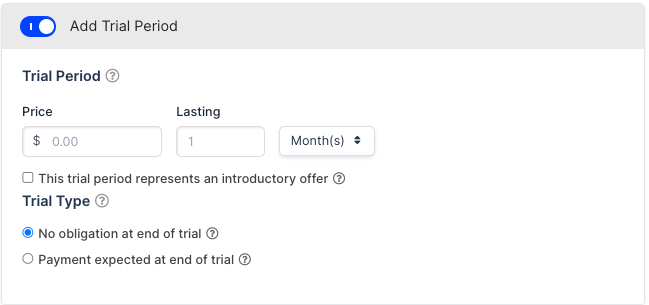
3. Trial
Offer a trial period before the subscription starts billing at its full price.
| Field (if enabled) | Description |
|---|---|
| Price | (Required) Price of the trial. Set "0" for a free trial. |
| Lasting | (Required) How long the trial lasts. For example, "14" "Day(s)". |
| Trial Type |
|
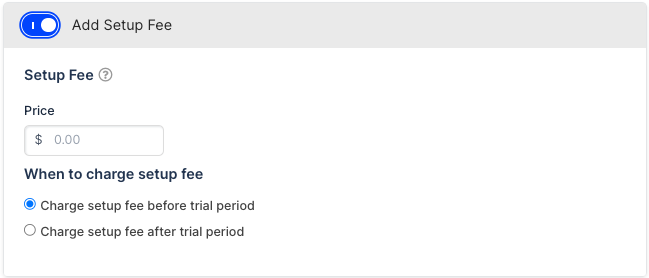
4. Setup fee
Charge a one-time fee on top of the recurring price.
| Field (if enabled) | Description |
|---|---|
| Price | (Required) Price of the one-time setup fee. |
| When to charge setup fee | (Required)
|
5. Expire the product after a set period
Stop billing automatically once a fixed term is up.
| Field (if enabled) | Description |
|---|---|
| Enable Expiration/Lifetime | How long until the subscription expires. For example, a 1-year term sets "Expire (stop billing) after this many MONTHS" to "12". |
6. Multi-currency pricing conversion
Let Advanced Billing create prices in your other currencies automatically.
| Field | Description |
|---|---|
| Multi-Currency Pricing Conversion | (Optional) If multi-currency is enabled with automatic conversions, Product prices are created automatically. These rates auto-update as currency conversions change over time. |
7. Create an additional price point
Repeat the process as needed for each additional Product Price Point this Product should offer.
Related information
To bundle this Product with Components and Coupons into a single package, see the Create an Offer help article.
Still need help?
Reach out and our support team will take it from here.