
Generate and Share Custom Offer Signup Pages
Last updated on Aug 24, 2026
Generate a Custom Offer Signup Page link from a Subscription Preview and share it with a prospective Customer for self-service signup. This requires a Force.com site and template to already exist.
Generate a signup link
Generate the link from the Subscription Preview on the Opportunity you're working.
To generate a Custom Offer Signup Page link
-
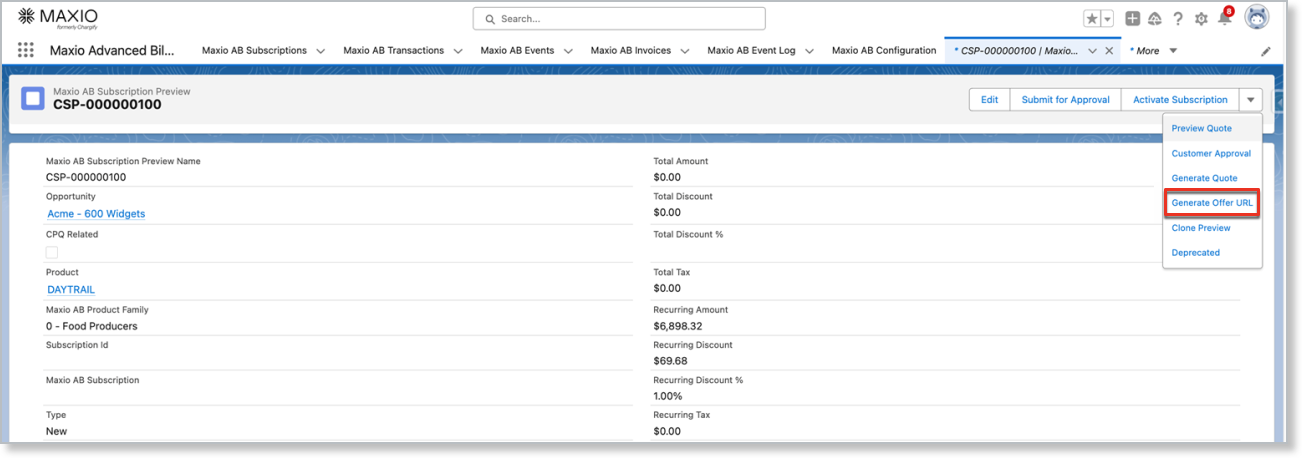
On the Opportunity, open the Advanced Billing Subscription Preview and click Generate Offer URL from the dropdown.
-
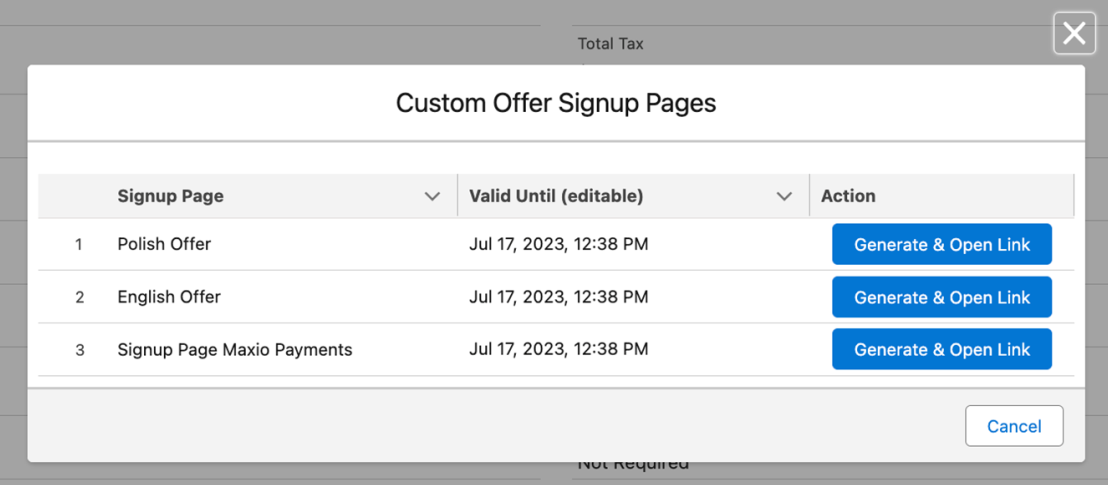
In the Custom Offer Signup Pages popup, choose a template and click Generate & Open Link next to it. This copies the link to your clipboard and opens it in a new browser tab.
You can generate an offer in these situations:
- The Subscription Preview hasn't already been sent or queued to be sent.
- The Subscription Preview isn't canceled.
- It's a new Subscription. Upgrade Subscriptions aren't supported.
- The Subscription Preview has Manager approval, if approval is required.
Share the link
Share the generated link with your prospective Customer. The link is unique to the offer and Customer, but anyone who has the link can view and submit it.
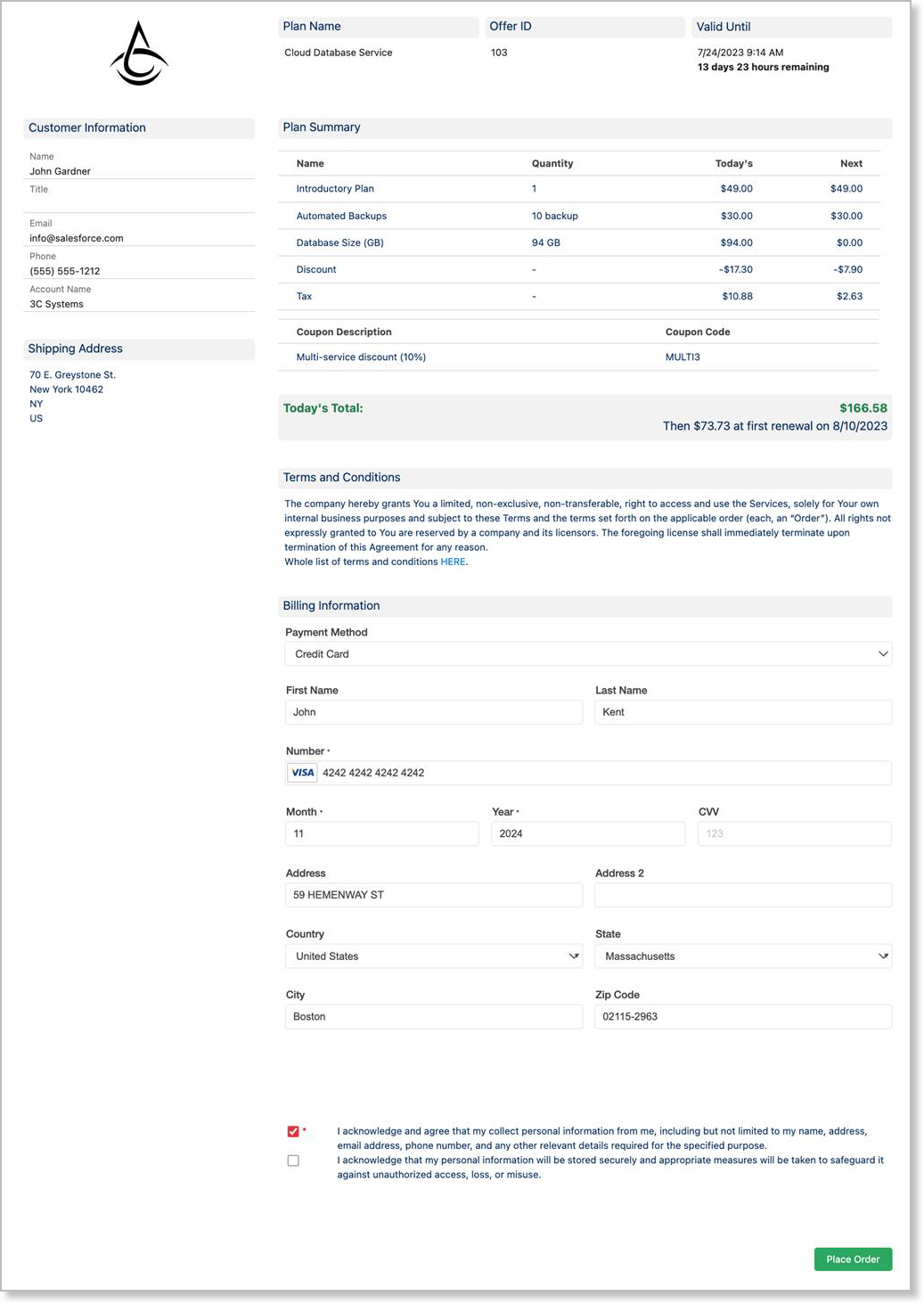
Salesforce generates the Signup Form using Advanced Billing JS, so the whole self-service signup flow runs in Salesforce.
The link is valid until the Valid Until date shown in the popup. Each template has a default validity period, but you can override it for a specific link by clicking the date and entering a new one.
After the Valid Until date passes, the Customer sees an offer expiration message. Generate a new link to extend the offer.
You can also customize the expiration message from the Site Template's OfferExpiredMessage.
If you change the Subscription Preview (for example, its Product or a component) after generating a link, the existing link shows a modification error and blocks Subscription creation. Generate a new link for the updated offer.
Related information
To configure Force.com sites and templates, see Configure Custom Offer Signup Pages.
For common signup page errors, see Troubleshoot the Salesforce Integration and FAQs.
Still need help?
Reach out and our support team will take it from here.