
Bad or Missing Email Address
Last updated on Aug 20, 2026
Maxio blocks you from turning on e-Bill delivery for a Customer that has no email address, and rejects an obviously malformed one the moment you type it into the Email field. Typing an invalid address directly into a Customer's Email field in Maxio triggers this validation immediately, before you can save the record.
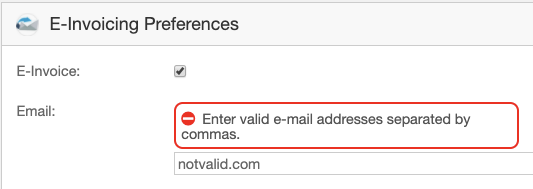
QuickBooks Desktop applies no equivalent check to its own Customer records: it accepts an address like notvalid.com without complaint. Maxio pulls a Customer's email address back from QuickBooks Desktop on every sync, so a bad or missing address that exists there lands in the Customer's QuickBooks Billing Profile in Maxio too, without ever passing through the validation shown above. A Customer whose Email field reached this state through a sync shows no warning in Maxio, whether the address that came over is invalid or missing entirely, as the two panels below show.
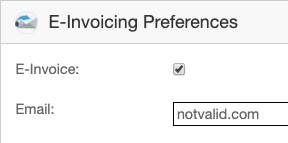
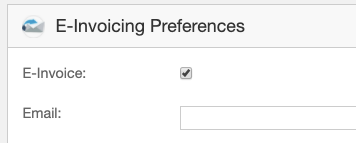
The rejection only surfaces later, when Maxio syncs an Invoice or Credit Memo for that Customer with the Invoice Email Preference turned on, and QuickBooks Desktop rejects the address it currently holds.
Invalid primary email blocks sending Invoices and Credit Memos
QuickBooks Desktop returns an error similar to There was an error when saving an Invoice/Credit Memo. QuickBooks error message: The email address specified for this customer is invalid, and the transaction is marked 'To be e-mailed.' when one of the Invoices or Credit Memos in the sync queue belongs to a Customer whose primary email address is currently invalid or missing in QuickBooks Desktop.
Fix the address in whichever system should own it going forward, then sync again so the corrected value reaches both sides.
To fix a bad or missing primary email address
- Open the Customer record, either in Maxio or in QuickBooks Desktop, wherever you manage that Customer's contact information.
- In Maxio, edit the Customer and correct the address on the QuickBooks Billing Profile tab. In QuickBooks Desktop, edit the Customer record's Email field directly.
- Sync QuickBooks Desktop again. The corrected address carries over to the other system, and the queued Invoice or Credit Memo can send.
If you do not want the transaction emailed at all, turn off the Invoice Email Preference on the Customer or Job instead of chasing down the email address. If a large number of Customers are affected, for example after an import, contact support@maxio.com for help correcting them in bulk.
Invalid Cc email blocks sending Credit Memos
Sending a Credit Memo can also fail with There was an error when saving a Credit Memo. QuickBooks error message: The Cc email address specified for this customer is invalid, and the transaction is marked 'To be e-mailed.'
Maxio's QuickBooks Desktop integration has no field of its own for a Customer's Cc email address. The sync only ever sends a Customer's primary email address to QuickBooks Desktop; it never reads or writes a Cc value. This means the invalid Cc address was set directly in QuickBooks Desktop, independent of anything Maxio manages, so editing the Customer's address on its QuickBooks Billing Profile tab in Maxio has no effect on this error.
To fix an invalid Cc email address
- In QuickBooks Desktop, open the Customer record named in the error.
- Correct or remove the Cc email address on that Customer record.
- Sync QuickBooks Desktop again to resend the Credit Memo.
Prevent bad email addresses from blocking QuickBooks Desktop sync
Since QuickBooks Desktop accepts a primary email address in any format, the best way to catch a bad one before it blocks an Invoice or Credit Memo sync is to manage it from the Maxio side and let Maxio's own validation do the work.
- Edit primary email addresses on a Customer's QuickBooks Billing Profile in Maxio rather than in QuickBooks Desktop, so Maxio's format check catches an obviously bad address before you save it.
- After importing Customer data, review email addresses for anything incomplete or malformed, since importing bypasses the validation that applies when you type an address into the Email field directly.
- QuickBooks Desktop's Cc email address is not visible to or managed by Maxio at all, so check that field periodically directly in QuickBooks Desktop if your Customers use it.
Related information
For how the To Be Emailed queue and the Invoice Email Preference setting interact between Maxio and QuickBooks Desktop, see Sync QuickBooks Invoices.
For how a Customer's fields, including its email address, sync between Maxio and QuickBooks Desktop, see Sync QuickBooks Customers.
Still need help?
Reach out and our support team will take it from here.