
Customer Inactive in QuickBooks Online
Last updated on Aug 20, 2026
Customers set to Inactive in QuickBooks Online sync to Inactive in Maxio on the next sync, updating both the Customer's Maxio status and its QuickBooks status on the QuickBooks Billing Profile. QuickBooks Online renames the Customer by appending "(deleted)" to its name, though the Customer still exists in your QuickBooks Online account with an Inactive status.
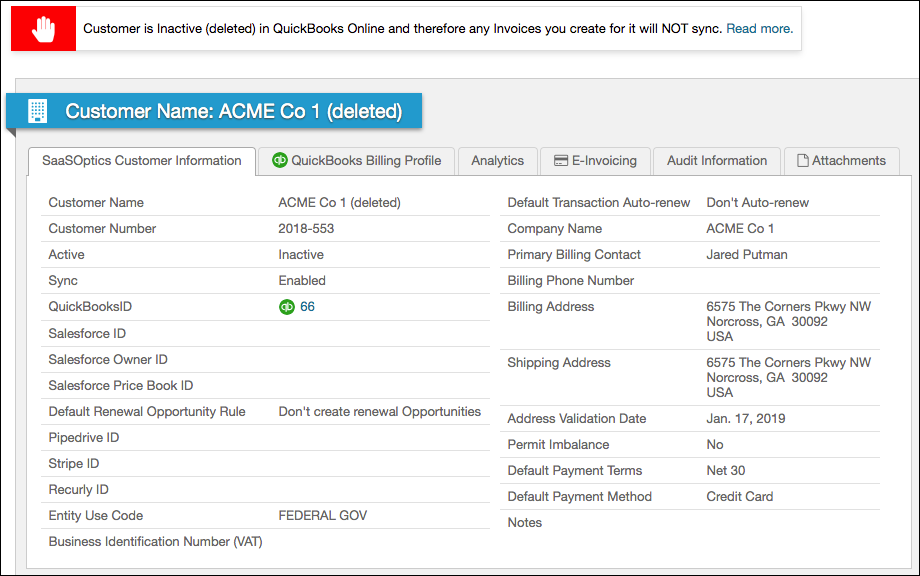
QuickBooks Online does not allow creating an Invoice for an Inactive Customer. If Maxio attempts to sync an Invoice for this Customer, the sync fails with an error instead of completing.
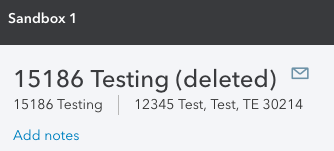
Reactivate the Customer in QuickBooks Online
In QuickBooks Online, open the Customer and select Make Active, then run a sync in Maxio to clear the alert and resume sending Invoices for that Customer.

Related information
For the full set of behaviors when a Customer is deleted, deactivated, or duplicated in QuickBooks, see Sync QuickBooks Customers.
Still need help?
Reach out and our support team will take it from here.