
QuickBooks Online Payment Sync Error: Object Not Found
Last updated on Aug 24, 2026
A Payment in Maxio can fail to sync to QuickBooks Online when its Invoice already shows as paid directly in QuickBooks. The Send Payment sync step then returns an error similar to Object "..." specified in the request cannot be found, since QuickBooks won't apply another Payment against an Invoice it already considers paid.
Stop the payment from syncing to QuickBooks
Before changing the Payment record, open its Invoice in QuickBooks and confirm QuickBooks shows it as paid. If QuickBooks doesn't show the Invoice as paid, contact Maxio support instead, since something else is causing the sync issue.
To fix this
-
In Maxio, open the problem Payment record.
-
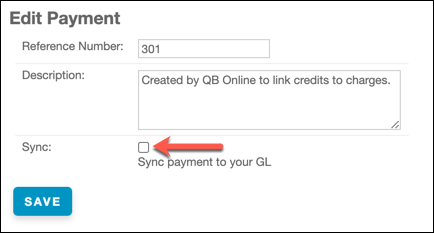
Edit the Payment and clear the Sync checkbox.
-
Run a QuickBooks sync.
Clearing the Sync checkbox removes the Payment from the Payments to Send queue for QuickBooks, so it no longer holds up your next sync.
Match your payment sync setting to how you collect payments
This sync issue often comes down to whether your Only Sync Payments in Confirmed Batches setting, described in Configure QuickBooks Integration Settings Fields, fits how you collect payments:
- If you collect payments through a connected payment processor, leave this setting enabled and let Payments (and Deposits) sync to QuickBooks on their own, instead of manually applying them in QuickBooks yourself.
- If you don't use a payment processor and enter Payments manually in Maxio, disable this setting. Left enabled, Maxio holds those Payments back from syncing since they never get linked to a Deposit.
Related information
For what each QuickBooks integration setting controls, see Configure QuickBooks Integration Settings Fields.
For how to manually receive and apply a Payment to an Invoice in Maxio, see Receive and Apply Payments to Invoices.
Still need help?
Reach out and our support team will take it from here.