
Web Connector Error QBWC1053: A Modal Dialog Box Is Open in QuickBooks
Last updated on Aug 20, 2026
QuickBooks Web Connector can fail an Update with this error while it's trying to reach your QuickBooks Desktop company file, including right after you install the Maxio-generated QWC file into Web Connector for the first time:
QuickBooks Web Connector failed to connect. QuickBooks returned the following error: A modal dialog box is showing in the QuickBooks user interface. Fix the problem and then click OK to try again.
It shows up whenever a screen that lets you actively edit information in QuickBooks Desktop, such as the Preferences window, is still open when Web Connector tries to run the sync.
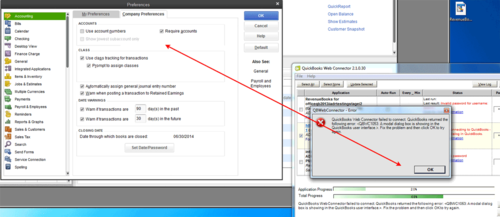
Why an open QuickBooks edit screen triggers QBWC1053
QuickBooks Desktop treats a screen like Preferences, or any record open for editing, as modal: while one of these is on screen, QuickBooks Desktop won't let any other application, including Web Connector, read or write to the company file. If Web Connector reaches QuickBooks Desktop for a sync step while one of these screens is open, QuickBooks Desktop refuses the request, and Web Connector reports it back as QBWC1053.
Exactly how QuickBooks Desktop enforces this modal-dialog restriction, and how Web Connector maps it to the QBWC1053 error code, is a detail of QuickBooks Desktop and Web Connector themselves. Neither is something Maxio's codebase controls or can confirm.
The QWC file you install into Web Connector is generated by Maxio and its download is restricted to account admins; it registers Maxio's sync service as RevenueBooks, the application name shown in Web Connector's list. When Web Connector can't get through to QuickBooks Desktop for a step, it reports the failure back to Maxio's server, which logs it and closes out that sync session. Maxio doesn't automatically retry a sync that ends this way, so the Update needs to be started again once the screen is closed.
Close the QuickBooks edit screen and run Update again
Closing whatever screen is open in QuickBooks Desktop clears the block right away; neither QuickBooks Desktop nor Web Connector needs to be restarted for it to take effect.
To close the screen and retry the update
- Switch to the QuickBooks Desktop window. It may be sitting behind Web Connector or another application.
- Close the open screen, such as Preferences, or any record you have open for editing, by selecting OK or Cancel.
- In Web Connector, select OK on the QBWebConnector - Error dialog, then select Update Selected again to retry the sync.
Prevent QBWC1053 by clearing edit screens before you sync
Get in the habit of closing Preferences and any record you're editing in QuickBooks Desktop before you select Update Selected in Web Connector, since any modal screen left open blocks the sync the same way. Maxio's generated QWC file doesn't set or control an Auto-Run schedule in Web Connector, so that option, and whatever interval it runs on, lives entirely in Web Connector's own settings. If Auto-Run is turned on for your installation, an edit screen left open when a scheduled run starts produces the same QBWC1053 error, unattended, on every run until someone closes it.
Related information
For the Web Connector download and setup steps that install the RevenueBooks QWC file this error refers to, see Setup QuickBooks Desktop.
Still need help?
Reach out and our support team will take it from here.