
Remove a Stuck QBWC1088 Entry from the Web Connector
Last updated on Aug 20, 2026
An entry in the QuickBooks Web Connector's list can get stuck so that selecting Remove in the right-most column doesn't clear it, sometimes alongside the Web Connector's QBWC1088 error. When this happens, the entry has to be removed from QuickBooks itself, and in some cases from the Windows registry, rather than from the Web Connector window alone.
Why a Web Connector entry gets stuck
Selecting Remove in the Web Connector's own list only works while the QuickBooks company file that entry connects to is open, and it only removes the reference from the Web Connector's list. It doesn't remove the corresponding registration inside QuickBooks. If QuickBooks still lists that same application under Integrated Applications, the entry can reappear or refuse to delete until you remove it from QuickBooks directly. In rarer cases, the entry's settings also persist in the Windows registry, where the Web Connector stores each entry's Scheduler and SOAP web-service data, so the entry keeps showing up until those registry keys are cleared too.
Remove the entry from QuickBooks' Integrated Applications list
Removing the entry from QuickBooks itself, rather than from the Web Connector window, clears most stuck entries.
To remove the entry from QuickBooks
- In QuickBooks, open Edit > Preferences.
- Select Integrated Applications, then open the Company Preferences tab.
- Select the entry, then select Remove.
Remove the entry's registry keys manually
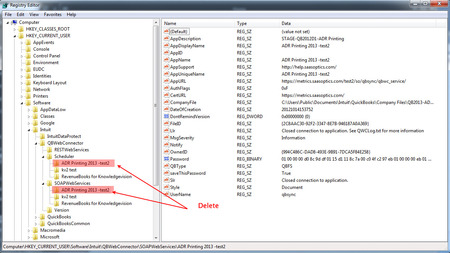
If the entry still won't clear after you remove it from QuickBooks, you can remove its leftover registry entries directly. The Web Connector stores each entry's settings under two keys in the Windows registry, and deleting the matching folder in each one finishes the removal.
WARNING: Editing the Windows registry incorrectly can affect other applications on the computer, not just QuickBooks or the Web Connector. Back up the registry before you continue, and only delete the folder that matches the entry you're removing.
To delete the entry's registry keys
- Open the Windows Registry Editor (RegEdit).
- Go to
HKEY_CURRENT_USER\Software\Intuit\QBWebConnector\Scheduler. - Delete the folder that matches the name of the QWC entry you want to remove.
- Go to
HKEY_CURRENT_USER\Software\Intuit\QBWebConnector\SOAPWebServices. - Delete the folder that matches the name of the same QWC entry.
The screenshot below shows the SOAPWebServices key, with the matching entry folders marked for deletion.
Related information
For an overview of other Web Connector sync errors, including how to gather the diagnostic details Maxio support needs, see QuickBooks Web Connector Errors.
Still need help?
Reach out and our support team will take it from here.