
Reorder and Adjust Invoice Layout Elements
Last updated on Aug 25, 2026
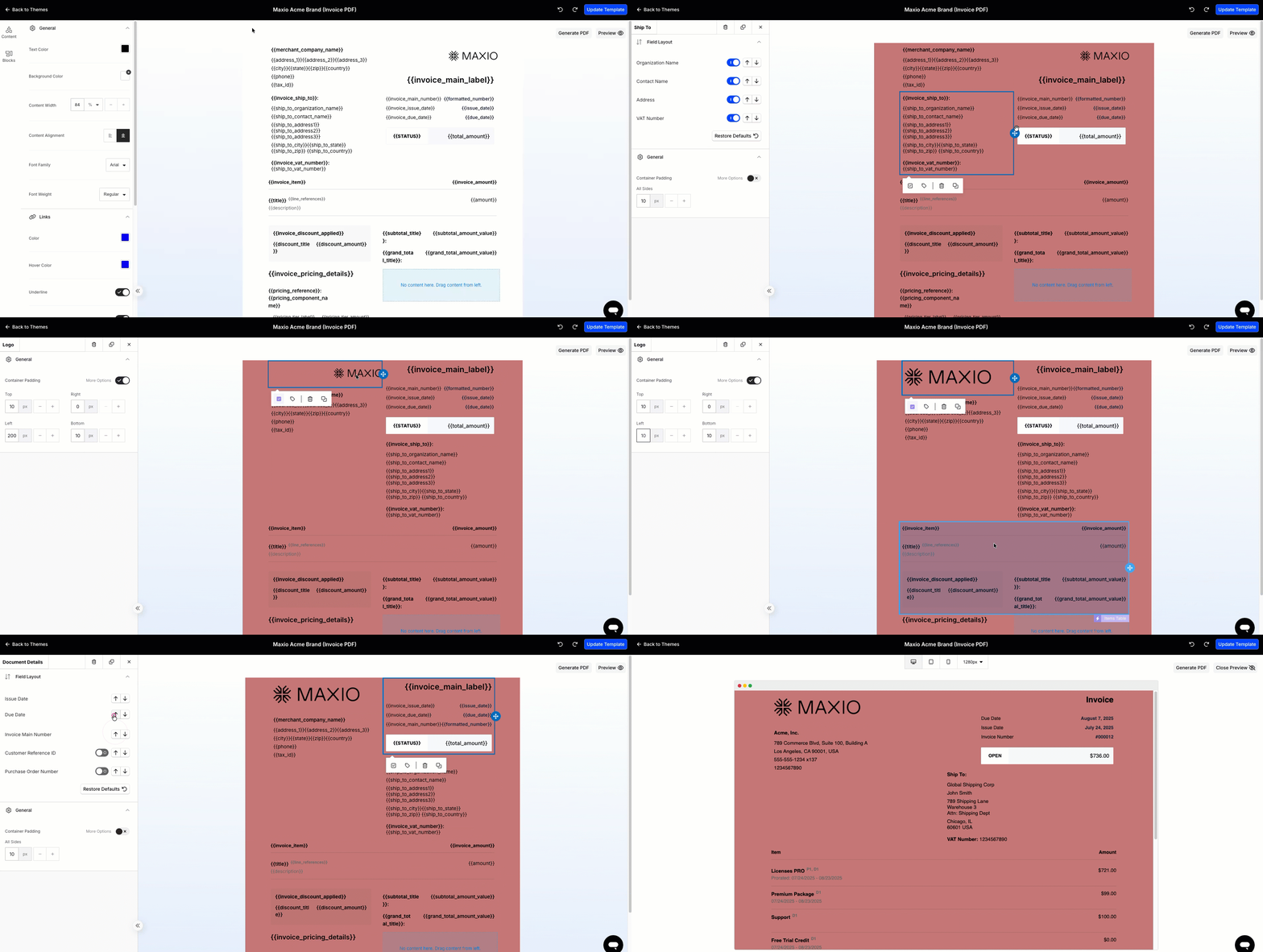
Adjust Invoice layout and structure in the Template Editor to improve readability and match your branding. Reorder fields, control alignment, and refine styling to create clear, customer-facing Invoice layouts.
What you can do in the editor
Layout controls let you adjust content structure and visual presentation. Available options vary depending on the section or column you are editing:
- Reorder fields
- Show or hide fields
- Restore default layout options, when available
- Adjust content alignment, available for certain sections or elements
- Change content width, available in some layouts or configurations
- Update background styling
- Adjust column width options
- Change column alignment, available for supported column layouts
When to use these controls
Use layout controls to simplify the Invoice, highlight important billing information, or better match your brand. These changes are especially useful for customer-facing Invoice templates.
Best practice
After making layout changes, review the output before saving to catch spacing or formatting issues.
To verify your changes before saving
- Preview the template.
- Generate a PDF if needed.
- Click Update Template to save.
Related information
For the undo, redo, and template-switching controls in the Template Editor, see Using Template Editor Navigation and Controls.
For the rest of what you can do in the Template Editor, see Edit Invoice Template Layout.
Before publishing your changes, see Preview a Theme Before Publishing to check how they appear to Customers.
Still need help?
Reach out and our support team will take it from here.