
Using Themes
Last updated on Aug 25, 2026
Apply consistent Invoice branding and email styling across Advanced Billing and Maxio Core, from one set of Branding Themes. Centrally manage logos, layout, and visual elements so your Invoice rendering, Customer communications, and cross-system branding all stay in sync.
Using Branding Themes in Advanced Billing
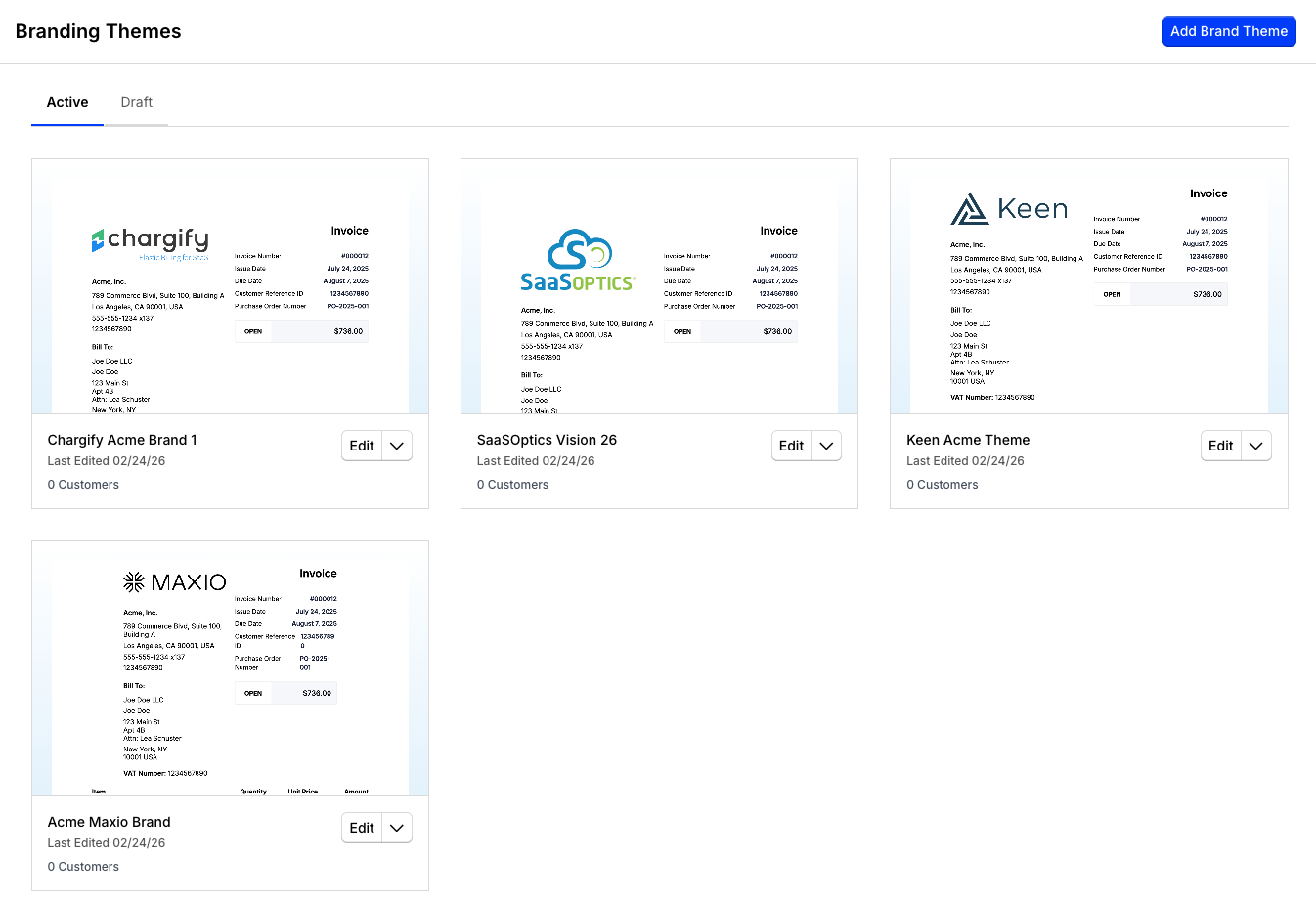
Advanced Billing includes a centralized Branding Themes area that allows administrators to create, manage, and apply consistent visual branding across Invoices, Customer communications, and document presentation.
With Branding Themes, administrators can:
- Create new Branding Themes
- Publish themes to make them available for use
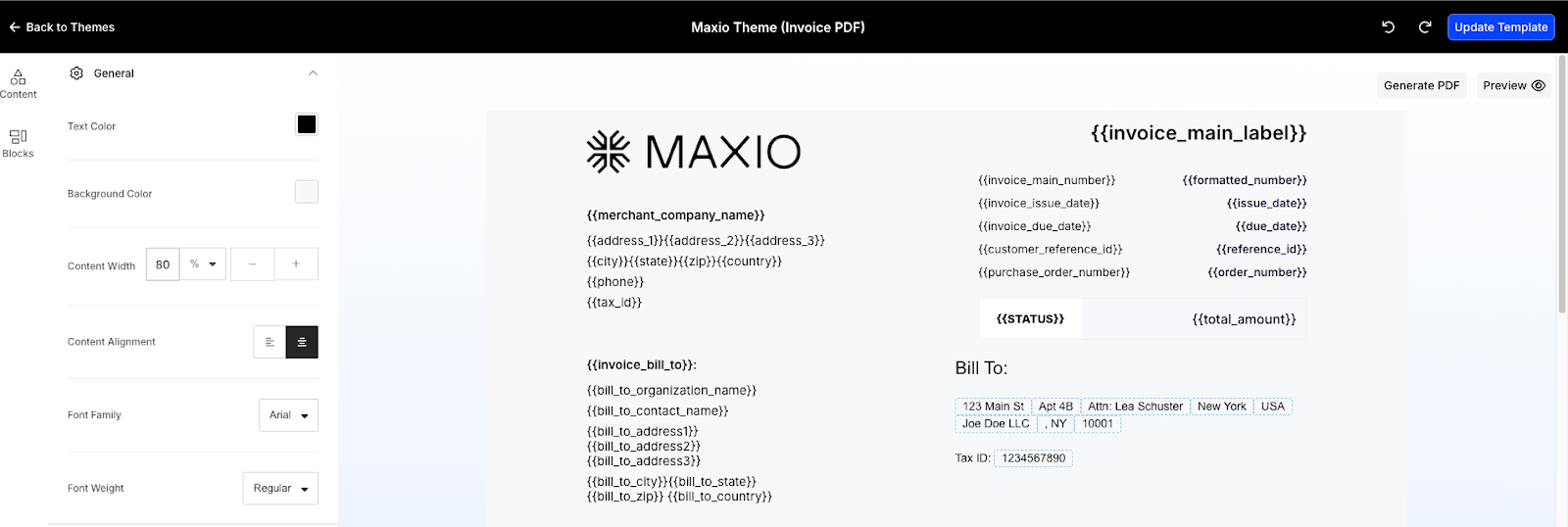
- Edit existing themes using a visual editor
- Preview theme layouts before publishing
- Assign themes to Customers or Subscriptions
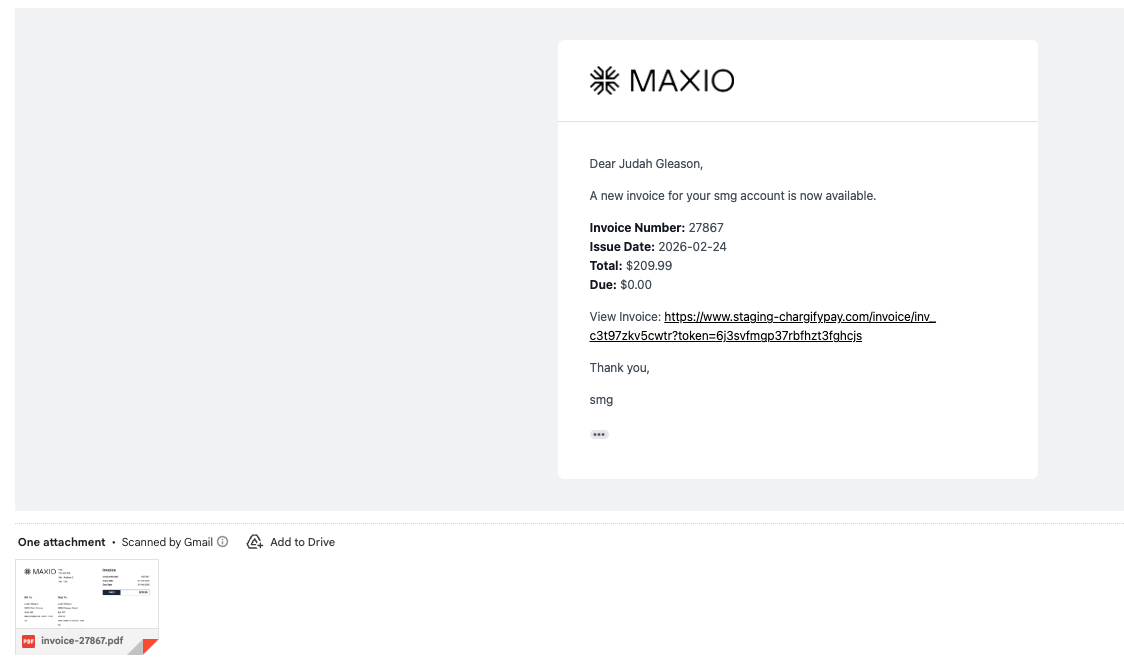
If you use the Email Template Library, the logo from your selected Branding Theme is automatically applied to email communications associated with Invoices. This ensures consistent branding across both document presentation and Customer communications.
All updates are managed directly within the UI, so you can adjust branding as your business evolves.
Using Branding Themes with Maxio Core
If you use Maxio Core alongside Advanced Billing, Branding Themes synchronize between systems to ensure consistent Invoice rendering and Customer communications.
- Branding Themes created in Advanced Billing can be referenced during Invoice generation in Maxio Core.
- Customer and Invoice records can reference a specific Branding Theme.
- Your existing Email Template Library workflows remain unchanged.
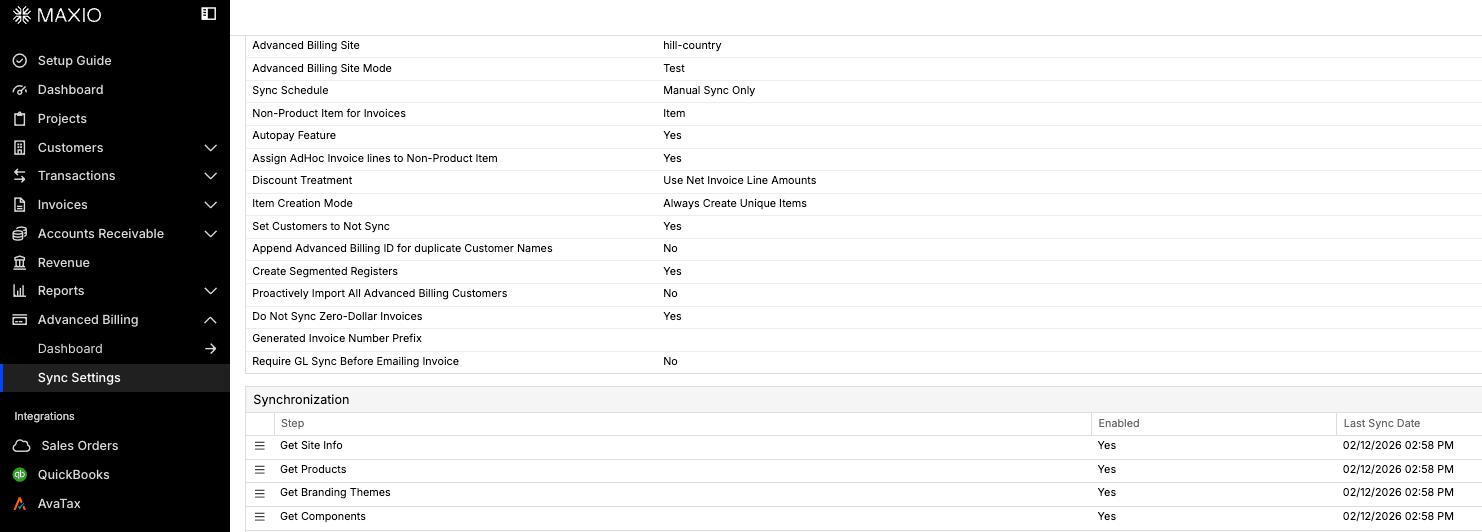
This synchronization ensures that branded Invoice rendering remains consistent across systems and workflows.
Understand template rendering
When an Invoice is generated, Maxio combines Invoice data with the selected Branding Theme to produce a professional, branded document.
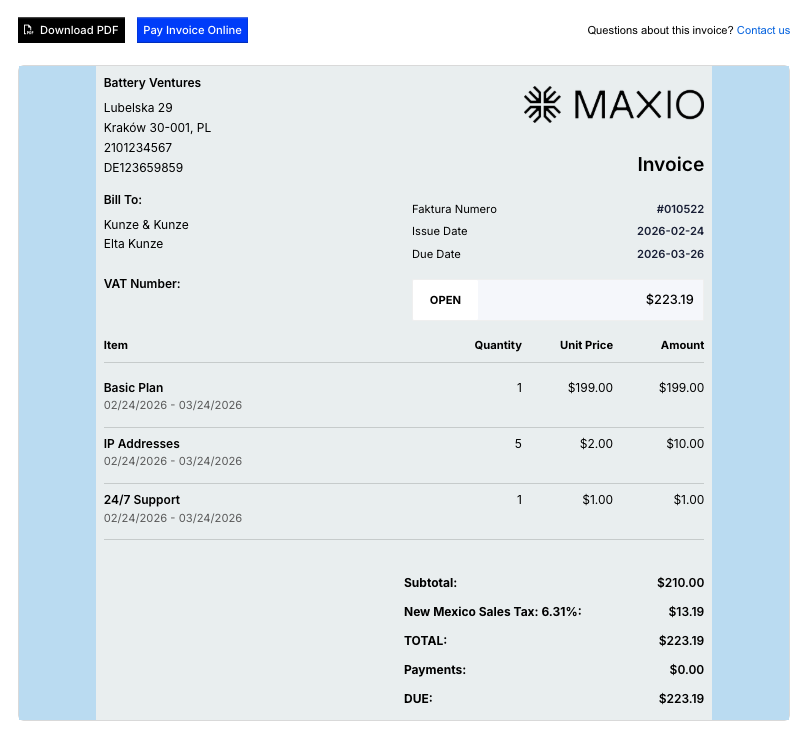
Branding applies to:
- The Invoice Landing Page
- The downloadable Invoice PDF
- Associated email styling elements
For the full theme assignment hierarchy, including what happens when no theme is assigned at any level, see Understand Branding Themes.
Related information
To design and publish your first theme, see Create a Theme.
To compare published and unpublished themes and take lifecycle actions from one dashboard, see Manage Branding Themes.
To change a theme's name, logo, language, colors, or fonts, see Update Theme Settings.
Still need help?
Reach out and our support team will take it from here.