
Configure and Implement Multi-Language
Last updated on Aug 28, 2026
A Customer's locale is the single value that decides which language they see. Set it once when the Customer is created, and Advanced Billing uses it to pick the right translation for their invoices and to let you branch your email content by language. Use this guide to set the locale from each of the three places a Customer can be created, then to translate each surface that supports it.
At a glance
- Feature
- All signup methods
- You Need
- An understanding of how customers subscribe to your services, and your post-signup flow (if any).
- Code
- Some
- Difficulty
- ◉◉◎◎◎
Where multi-language applies
Not every surface can be translated, and the ones that can each take a different amount of work. Check where your own signup and billing flow sits before you start:
Multi-language support by surface
| Surface | Multi-language | What it takes |
|---|---|---|
| Public Signup Pages | ✔ | Pass locale in the page URL, or set it with JavaScript |
| Offer Signup Pages | ✔ | The same as Public Signup Pages |
| Invoices | ✔ | Create a Language under Settings > Language. Invoices then follow the Customer's locale on their own, with no per-invoice setting to change |
| Emails | ✔ | Branch on customer.locale in the template, and write the content for each language yourself |
| Billing Portal | Not supported | |
| Advanced Billing Admin UI | The Admin UI itself is only available in English. You can still set a Customer's locale here, which is what every other surface reads | |
| Your own app (Maxio.js) | Maxio.js has no translation setting of its own. You supply its field labels and messages, so localize them along with the page you embed it in |
1. Set the locale when the Customer is created
A locale is a two-letter ISO 639-1 language code, optionally followed by a two-letter country code and joined by a hyphen. fr and fr-CA are both valid.
Important: An invalid locale is discarded silently rather than rejected. If the language code isn't a real two-letter ISO 639-1 code, Advanced Billing stores no locale at all and returns no error, so a typo such as
frrleaves the Customer with no language and no warning. Check the Customer record after your first test to confirm the locale saved.
You can set the locale from any of the three places a Customer gets created.
From a signup page URL
When you link to your signup page, prepopulate the locale parameter. Passing French makes your URL look like yourpage?locale=fr:
<!-- Syntax: PSPLINK?locale={locale}&reference=123&first_name=Ada&last_name=Lovelace -->
<a href="https://your-subdomain.chargifypay.com/subscribe/your-page-token/basic_plan?locale=fr&reference=123&first_name=Ada&last_name=Lovelace">
  <button type="button" class="w-100 btn btn-lg btn-primary">Subscribe to Pro</button>
</a>
The language is set in the background as the page loads and never appears to the customer. To test it, fill out your payment form and submit it, then open the Customer record and confirm the locale is set. For every other value you can prepopulate this way, see the Pre-populate a Public Signup Page via URL Parameters help article.
Through the API
When you create a subscription with the API and Maxio.js, pass locale inside the customer_attributes object:
// EXAMPLE: Maxio.js for Credit Cards - Create Subscription with Product
// ENDPOINT: POST /subscriptions.json
// DOCS: https://developers.maxio.com/http/advanced-billing-api/api-endpoints/subscriptions/create-subscription

// REQUEST BODY
{
  "subscription": {
    "product_handle": "gold-plan",
    "customer_attributes": {
      "first_name": "Ada",
      "last_name": "Lovelace",
      "email": "ada.lovelace@example.com",
      "organization": "Varity LLC",
      "locale": "fr"
    },
    "credit_card_attributes": {
      "chargify_token": "tok_examplecardtoken123456",
      "payment_type": "credit_card"
    }
  }
}
In the Advanced Billing admin UI
When you create the Customer in the Admin UI, set the language and country in the Language Settings section of the form. Advanced Billing combines the two selections into the locale it stores.
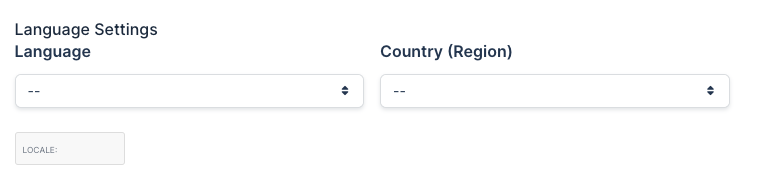
The language list holds every ISO 639-1 language, plus any Language you've already created for your Site.
2. Translate invoices
Invoices need no per-invoice language setting. Create a Language under Settings > Language, add your translated text to it, and every invoice for a Customer whose locale matches that Language picks up the translation automatically.
Advanced Billing resolves the translation from most specific to least specific, so a Language matching the Customer's full locale beats one matching only their language code. To create a Language, see the Create and Customize Languages help article. To see exactly which translation wins for a given Customer, see the Understand How Languages Apply to Invoices help article.
Note: The Language section appears under Settings only on Sites that use invoice-centric billing.
3. Translate emails
Emails work differently from invoices: Advanced Billing gives you the Customer's locale as a variable, and you write the content for each language yourself. Reference customer.locale in the template and branch on it with if, elsif, and else.
Sending a different greeting in French, German, and English
{% if customer.locale == "fr" %}
  Bonjour {{customer.first_name}}
{% elsif customer.locale == "de" %}
  Hallo {{customer.first_name}}
{% else %}
  Hello {{customer.first_name}}
{% endif %}
For the rest of what a template can do, see the Customize Email Templates help article.
4. Translate signup pages
Signup pages carry your own markup, so translate them with the same JavaScript and CSS you use for any other customization. The font-swapping technique in Include a Google font shows the pattern to follow.
Related information
To understand how Languages, locales, and translations fit together across Advanced Billing, see the Understand Multi-Lingual Invoices help article.
For the rest of the invoice settings that apply regardless of language, see the Configure Invoices help article.
Still need help?
Reach out and our support team will take it from here.