
Configure Retries & Dunning
Last updated on Aug 27, 2026
Dunning is the sequence of retries and emails Advanced Billing runs when a payment fails. Use this guide to configure it: setting up the dunning emails, creating a schedule for credit card failures from a template or from scratch, and then adding and editing the individual steps that schedule runs through.
At a glance
- Feature
- Retries & Dunning
- You Need
- An understanding of your business' dunning requirements and schedule.
- Code
- None
- Difficulty
- ◉◉◎◎◎
1. Configure the dunning emails
Dunning emails have their own from address, separate from the one the rest of your emails use. Set that address and the BCC list before you build a schedule, since every step that sends an email uses them.
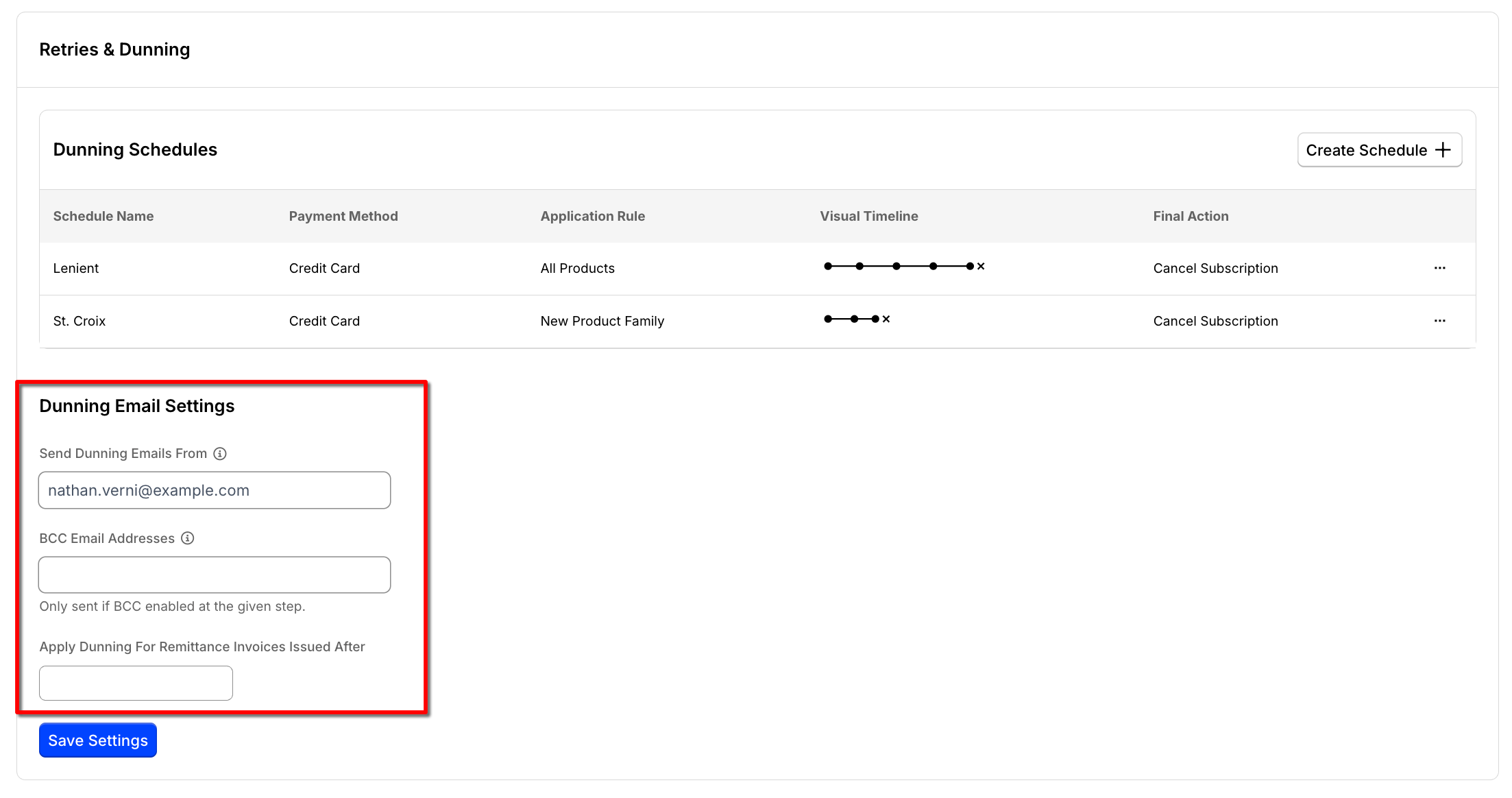
| Field | Description |
|---|---|
| Send Dunning Emails From | Sets the from address for the dunning emails. Include a name as well as an address using the format Your Name <you@example.com>, up to 256 characters. |
| BCC Email Addresses | Receives a copy of a dunning email whenever a step has BCC enabled. Separate multiple addresses with commas. |
| Apply Dunning For Remittance Invoices Issued After | Sets the date remittance dunning takes effect. This field only appears on Sites with remittance enabled. |
2. Create a dunning schedule for credit cards
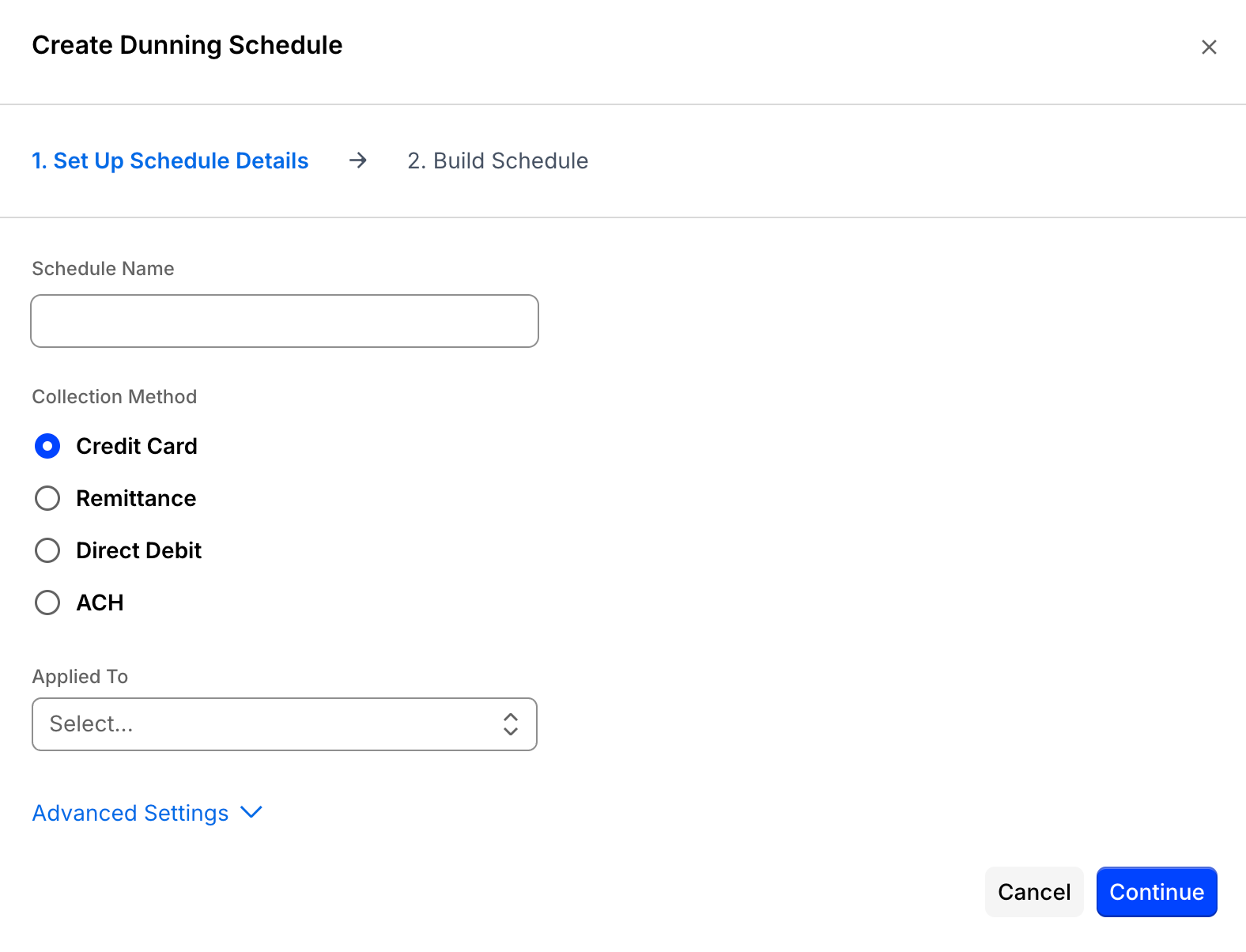
A schedule is the sequence Advanced Billing works through after a payment fails. Create one for the credit card collection method.
From Advanced Billing, go to Config > Retries & Dunning and create a new schedule.
3. Select a custom schedule or use a template
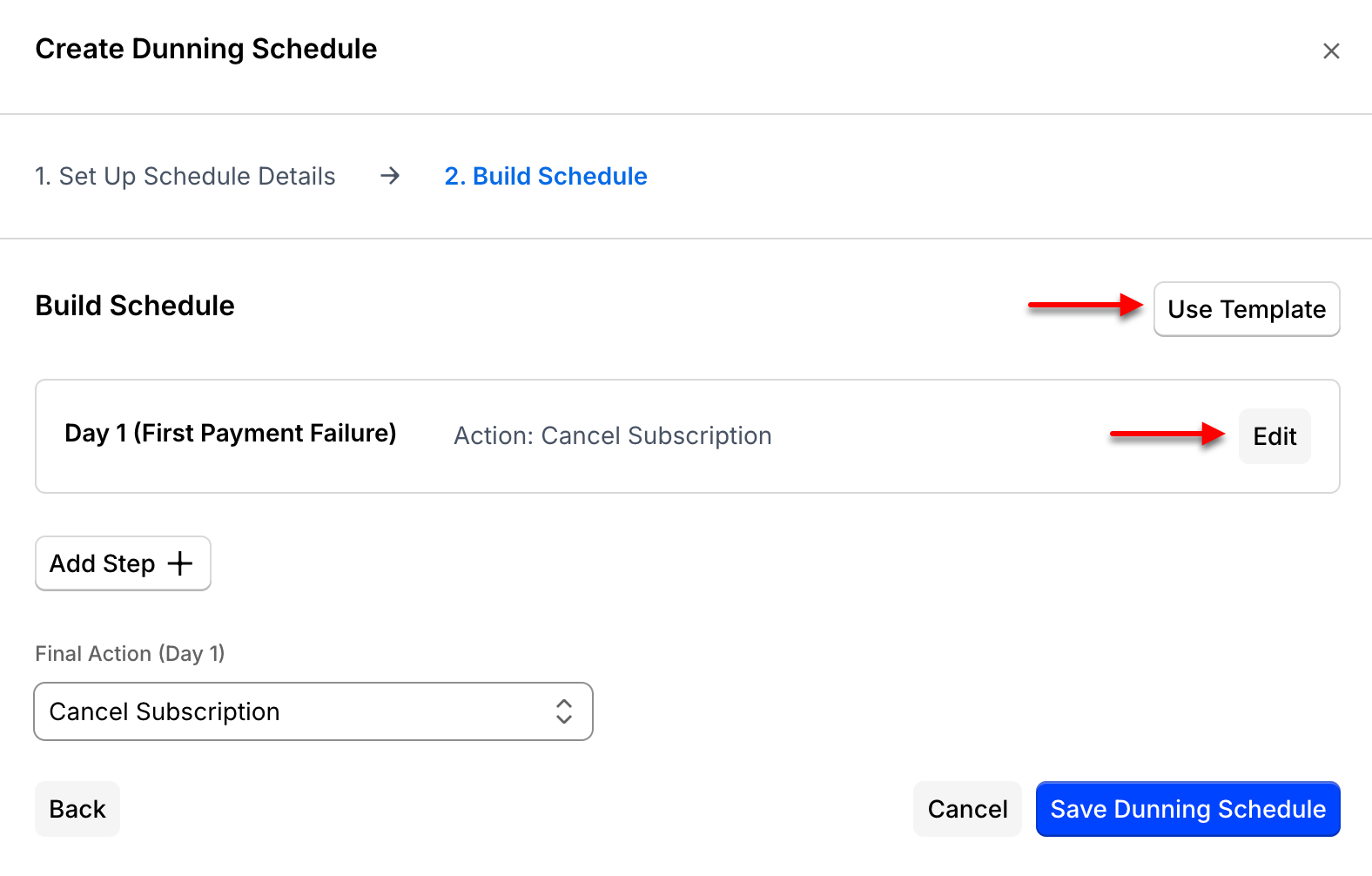
Advanced Billing ships preconfigured schedules. Start from a template if you want a working schedule immediately, or build your own if you already know the timing you need.
4. Edit the dunning schedule details
Name the schedule, choose what it applies to, and decide which payment failures start it.
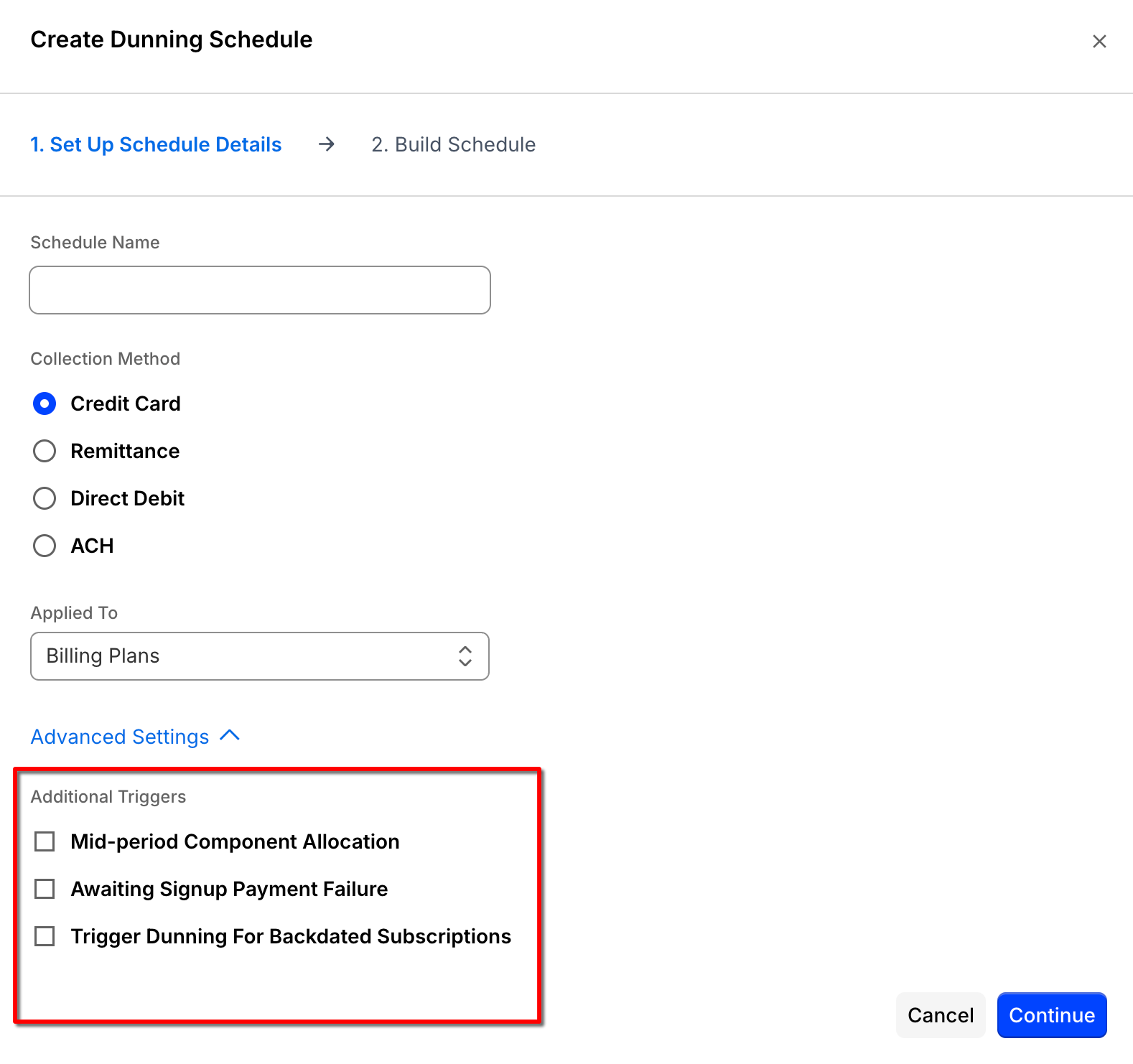
| Field | Description |
|---|---|
| Name | An internal name for the dunning schedule. |
| Applied To | The product or product family the schedule covers. Selecting a product family applies the schedule to every product in it, so selecting your Site's default family, named Billing Plans unless you renamed it, covers everything in that family. |
| Mid-period Component Allocation | Starts dunning when a mid-period component allocation payment fails. On Sites that allow productless subscriptions, this is labeled Mid-period Product Allocation. |
| Awaiting Signup Payment Failure | Starts dunning when a signup payment fails. |
| Trigger Dunning For Backdated Subscriptions | Starts dunning for backdated subscriptions on their first charge. |
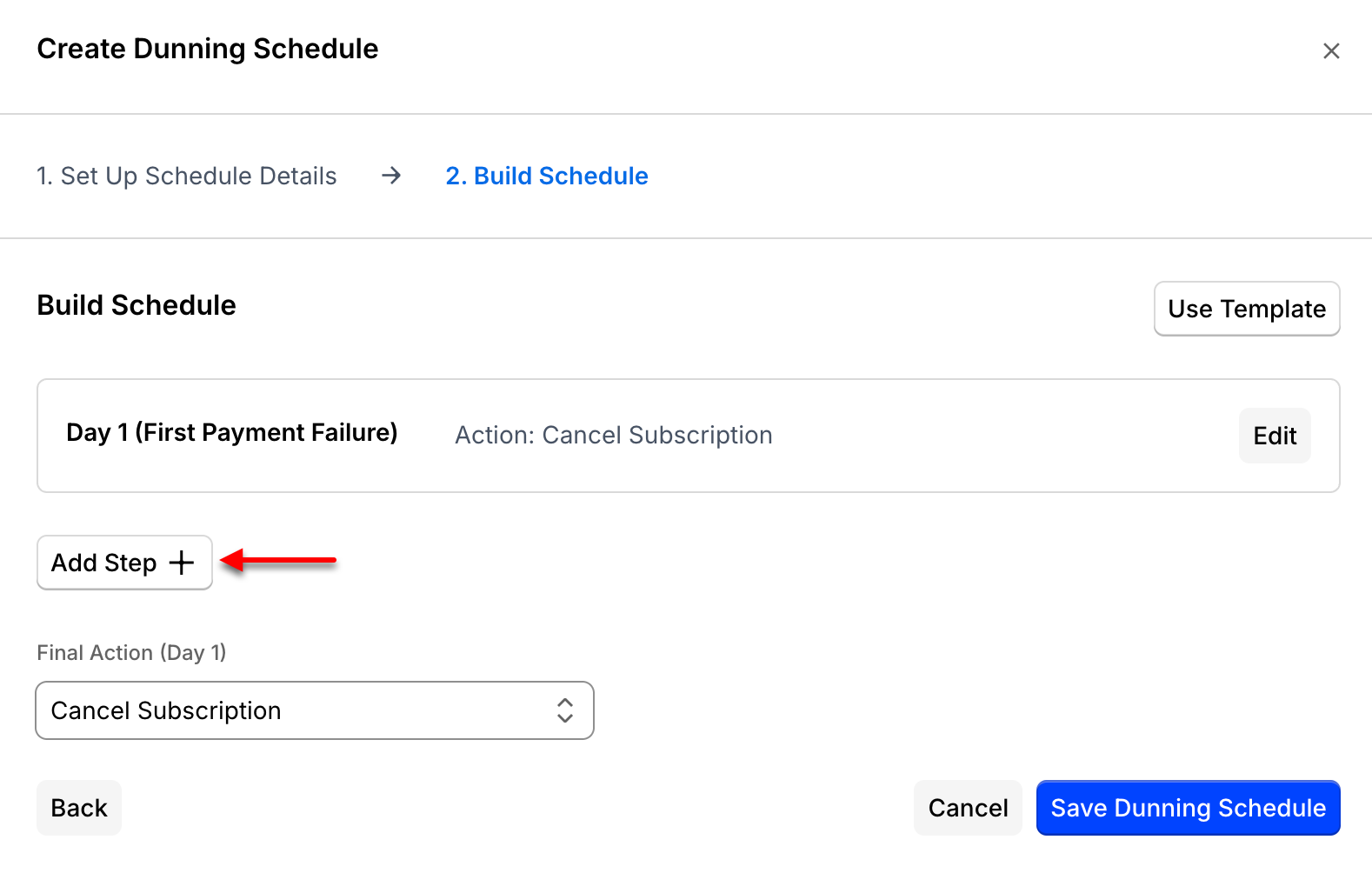
5. Add a dunning schedule step
Each step is one dated action in the sequence. Add as many as your schedule needs.
6. Edit the dunning steps
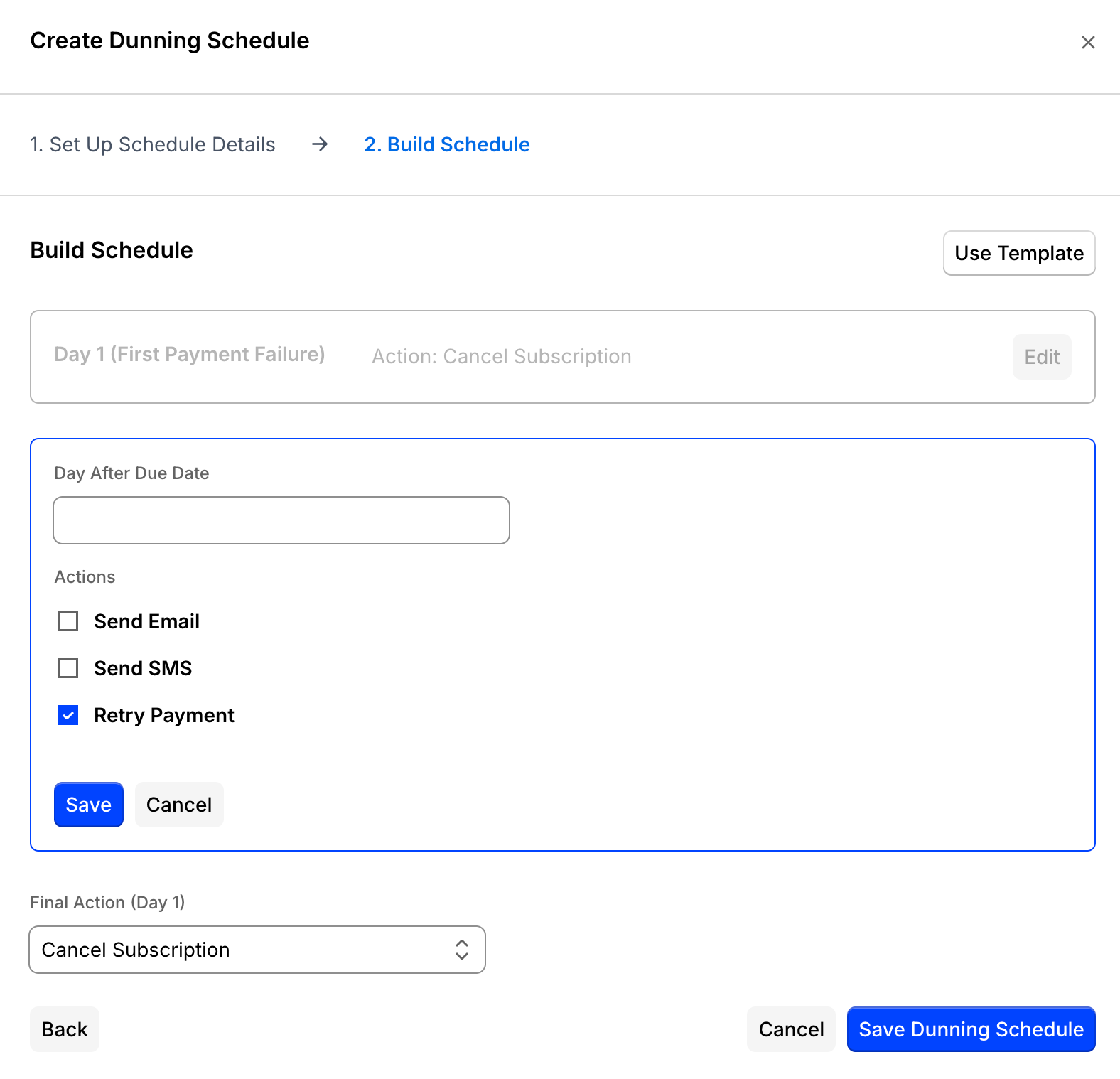
Set when each step fires and what it does when it does.
| Field | Description |
|---|---|
| Day After Due Date | How long after the payment's due date this step fires. Must be a positive number, and the first dunning step is always on day 1. |
| Send Email | Sends an email on this step. BCC can be enabled here as well. |
| Send SMS | Sends an SMS on this step. |
| Retry Payment | Retries the payment method on file when this step is reached. Only applicable to card dunning. |
| Final Action | Either cancels the subscription or marks it unpaid if it reaches this step. Only applicable to the final step. |
Related information
To set the from address used by every email that isn't a dunning email, see the Configure Emails help article.
To set whether invoices are collected automatically or by remittance, which determines the dunning behavior that applies, see the Configure Invoices help article.
Still need help?
Reach out and our support team will take it from here.