
Configure Invoices
Last updated on Aug 27, 2026
Invoice settings control how your invoices are collected and numbered, what they look like, and which emails go out when. Use this guide to configure all of it in Advanced Billing, from the collection method and starting invoice number through the email settings for automatic payments, remittance payments, and multiple invoices.
At a glance
- Feature
- Invoices
- You Need
- An understanding of how your company wants to customize invoices
- A branding guide for emails (optional)
- Code
- None
- Difficulty
- ◉◎◎◎◎
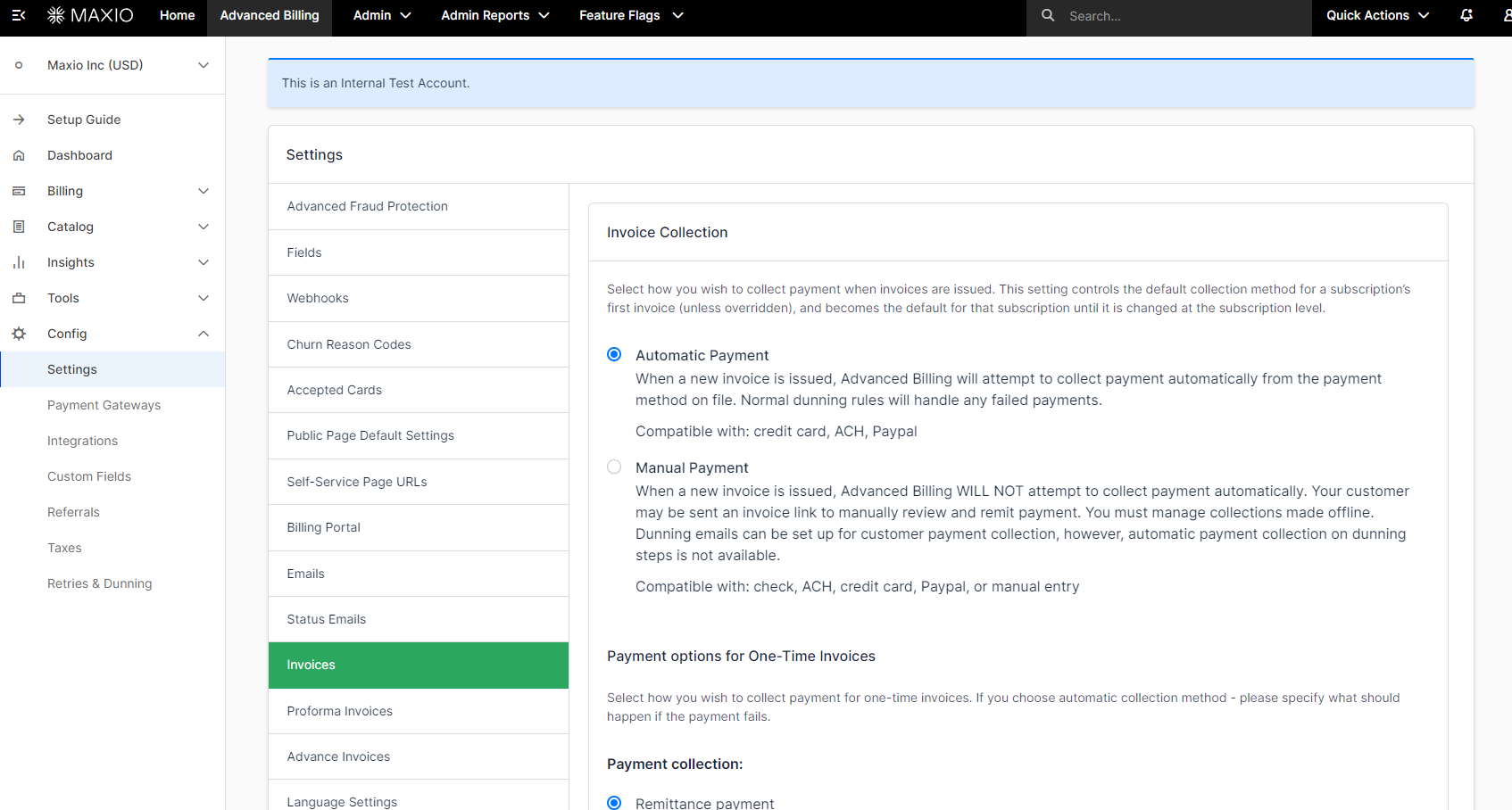
1. Open your invoice settings
Every setting in this guide lives on one page. Go to Config > Settings > Invoices.
2. Set the invoice collection method
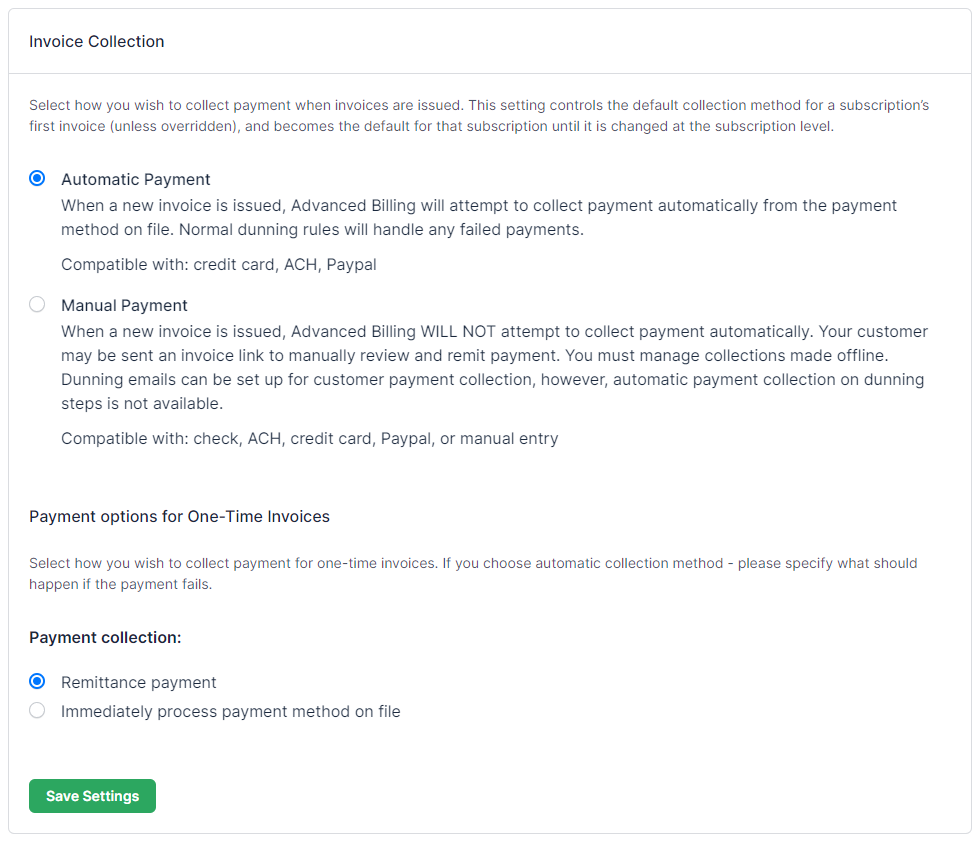
The Invoice Collection section decides whether Advanced Billing charges a payment method automatically or sends an invoice for the customer to pay. This choice applies to the first invoice of a subscription and continues from there unless it's changed at the subscription level.
| Field | Description |
|---|---|
| Invoice Collection | How payments are collected when an invoice is issued.
|
| Payment collection for One-Time Invoices (Ad Hoc Invoices) | How payment is collected for a one-time invoice.
|
| If processing of payment method on file fails | Only when one-time invoices are set to Immediately process payment method on file. What happens when that charge fails.
|
3. Set the invoice start number
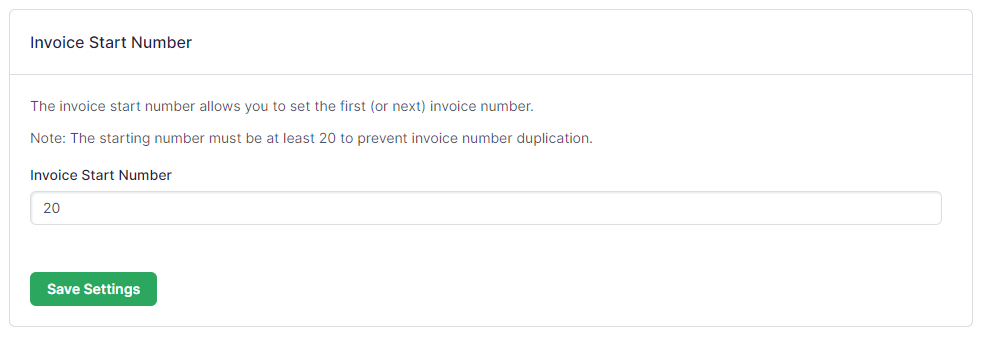
Set the number the next invoice uses, which every later invoice counts up from.
| Field | Description |
|---|---|
| Invoice Start Number | Sets the next invoice's number, and all future invoices tick up from it. This field updates itself to the newest invoice number. |
4. Set invoice customization
These settings control what appears on the invoice itself, in both its on-screen and PDF forms.
Invoice customization options
| Field | Description |
|---|---|
| Invoice Logo | Upload a logo to display on the invoice. The logo must be smaller than 10MB. |
| Merchant Information Displayed | Choose which information about your company appears on the invoice. You can add or remove your business name, address, and phone number. |
| Recipient Name | Choose whether to display the recipient's name, their business name, any combination of the two, or none at all. |
| Recipient Address | Choose whether to display the recipient's shipping address, their billing address, no address, or one as a backup. |
| Ship to Recipient Name | Choose whether to display the recipient's name, their business name, any combination of the two, or none at all. |
| Ship to Recipient Address | Choose whether to display the recipient's shipping address, their billing address, no address, or one as a backup. |
| Line Item Elements | Choose whether to display:
|
| Previous Balance Due | Choose whether to display the previous balance on an invoice. |
| Invoice Memo | Add a memo message to every invoice, and choose whether it appears on a new page. |
| Payment Instructions | Add a payment instruction message to every remittance invoice. |
| Tax | Choose whether to include on an invoice:
|
| Document Settings | Choose what to show in the PDF version of the invoice:
Show child invoices sets whether a parent invoice shows all child invoices or only those with activity. |
| Credit Note Settings | Choose whether to display credit note details on an invoice. |
| Public URL Expiration Time | How long public invoice links stay active before expiring. This applies to invoice links sent by email and public invoice links copied from the application.
This setting is only available to users with an admin, owner, or support role. |
5. Set email settings for automatic payments
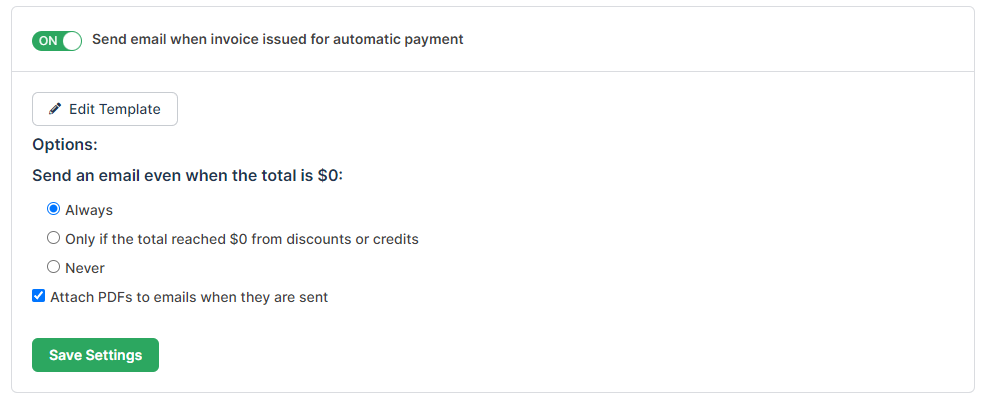
These settings govern the invoice email sent to customers whose payments are collected automatically.
| Field | Description |
|---|---|
| Send email when invoice issued for automatic payment | When enabled, invoices go to customers whose payments are automatic. Use Edit Template to customize the email. |
| Edit Template | Edits the default email sent for this invoice type. |
| Send an email even when the total is $0 | Sets whether the email and invoice are sent when the total is $0. |
| Attach PDFs to emails when they are sent | When enabled, a PDF copy of the invoice goes out with the email. |
6. Set email settings for remittance payments
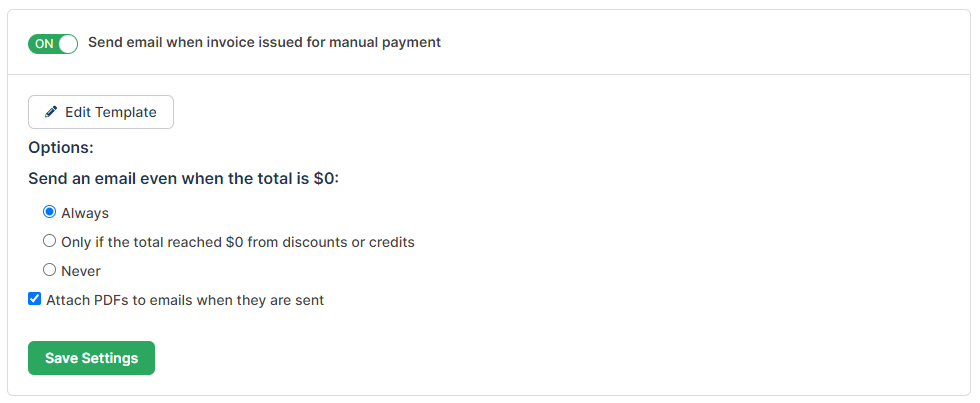
These settings are the same as the automatic-payment set, applied to customers who pay manually.
| Field | Description |
|---|---|
| Send email when invoice issued for manual payment | When enabled, invoices go to customers who pay manually. Use Edit Template to customize the email. |
| Edit Template | Edits the default email sent for this invoice type. |
| Send an email even when the total is $0 | Sets whether the email and invoice are sent when the total is $0. |
| Attach PDFs to emails when they are sent | When enabled, a PDF copy of the invoice goes out with the email. |
7. Set email settings for multiple invoices
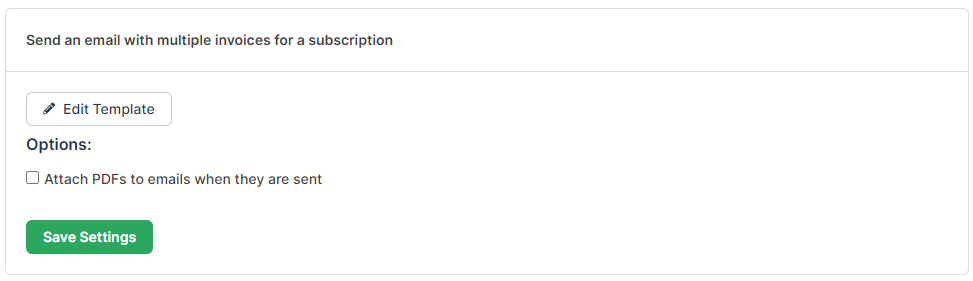
This email covers the case where one subscription produces several invoices at once.
| Field | Description |
|---|---|
| Edit Template | Edits the default email sent for this invoice type. |
| Attach PDFs to emails when they are sent | When enabled, a PDF copy of the invoice goes out with the email. |
Related information
To write the content of the invoice emails these settings switch on, see the Configure Emails help article.
To show a custom field on your invoices, see the Implement Custom Fields help article.
To translate invoices for customers in other languages, see the Configure and Implement Multi-Language help article.
Still need help?
Reach out and our support team will take it from here.