
Configure Currencies
Last updated on Aug 29, 2026
If your company bills in more than one currency, each currency has to be added to your Site before you can price anything in it. Use this guide to add a currency in Advanced Billing, then to set definitive prices in that currency on a product or component price point rather than relying on automatic conversion.
At a glance
- Feature
- Multi-Currency
- You Need
- Understand which currencies your company bills in
- Code
- None
- Difficulty
- ◉◎◎◎◎
1. Add a currency
Adding a currency makes it available to price in. Choose the currency, then decide whether Advanced Billing tracks the exchange rate for you or holds a rate you set yourself.
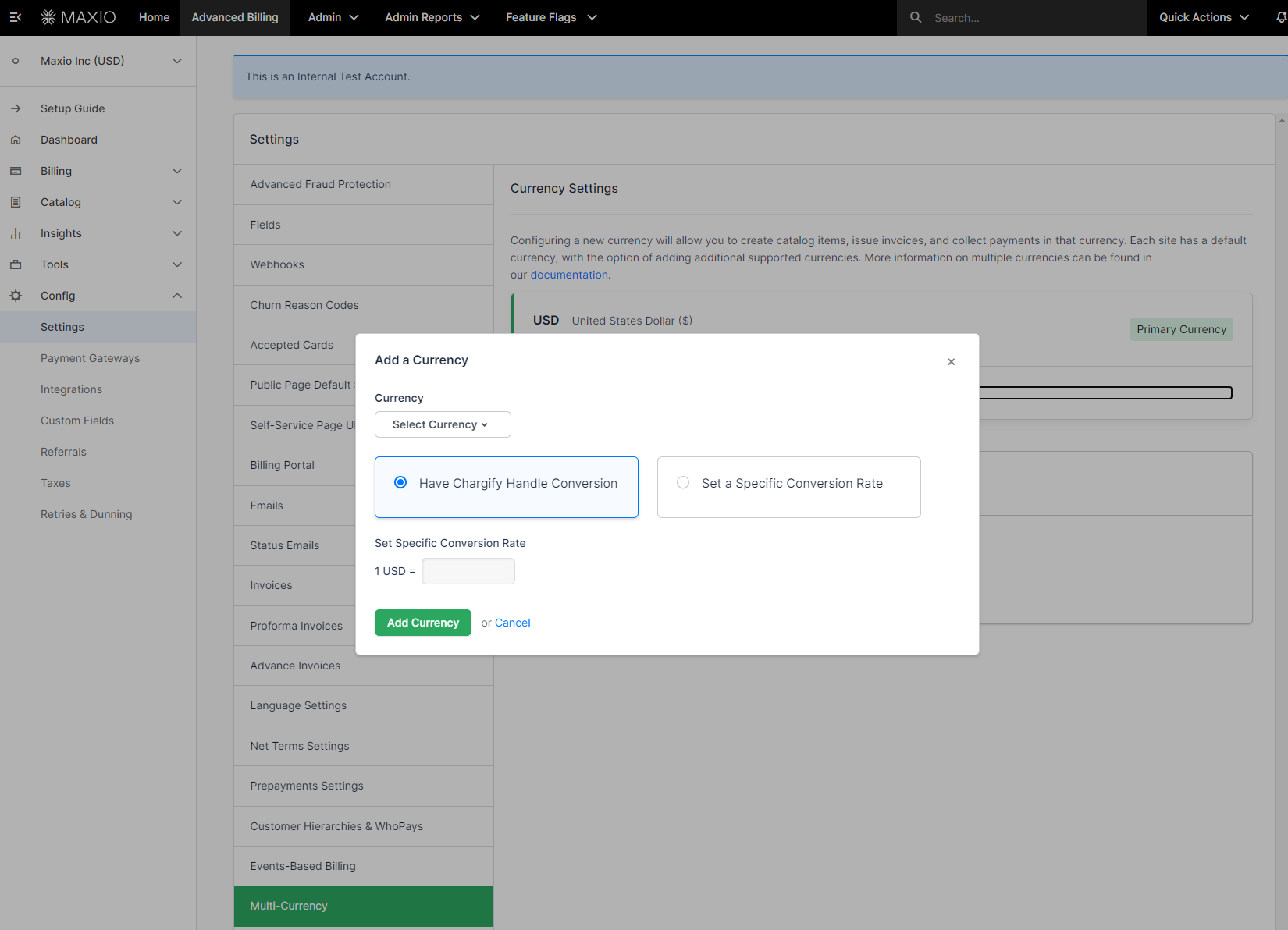
| Field | Description |
|---|---|
| Currency | (Required) The currency your company wants to add. |
| Conversion Setting | (Required) How the exchange rate against your home currency is maintained.
|
| Set Specific Conversion Rate | (Required) Only when you select Set a Specific Conversion Rate. The field reads 1 <your home currency> = <rate> <new currency>, so enter how much of the new currency one unit of your home currency buys. |
2. Set definitive pricing for other currencies
This section is optional. Skip it if you're content to let Advanced Billing convert your home-currency prices at the current rate.
Definitive pricing lets you name the exact amount you want to receive rather than accepting a converted figure, which matters when you want round, marketable prices in each currency instead of whatever the exchange rate produces.
Edit a product or component
Open the product or component whose price point you want to price definitively.
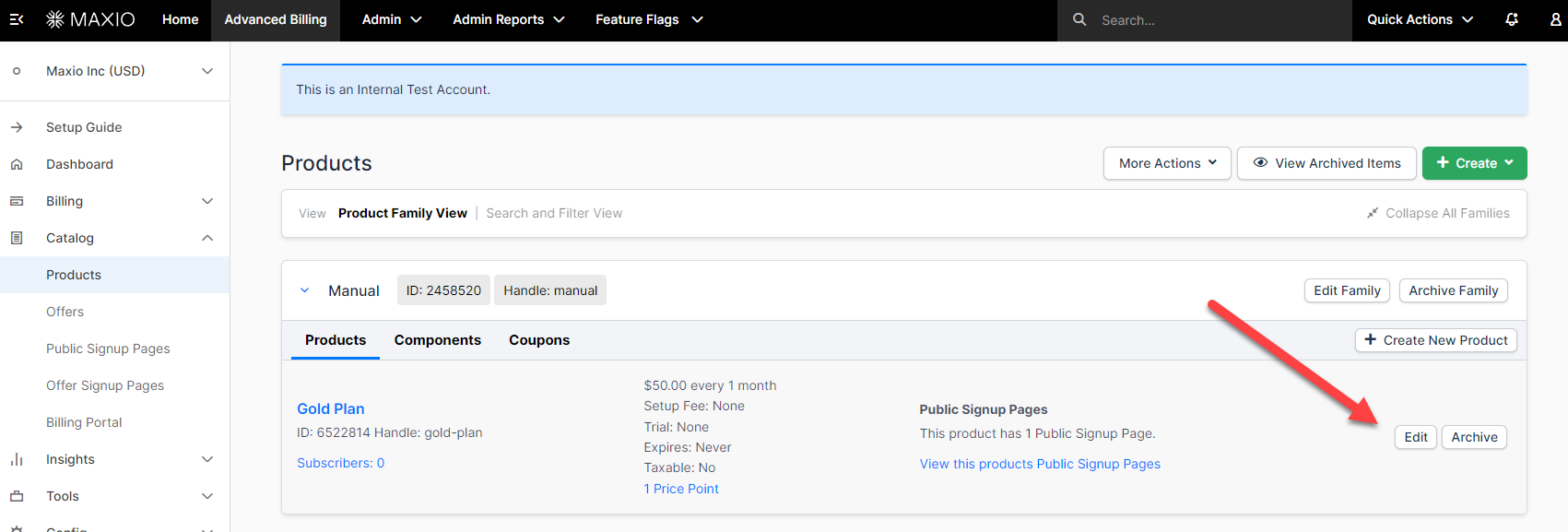
Set definitive pricing on a price point
On the price point's menu, select Set Definitive Pricing.
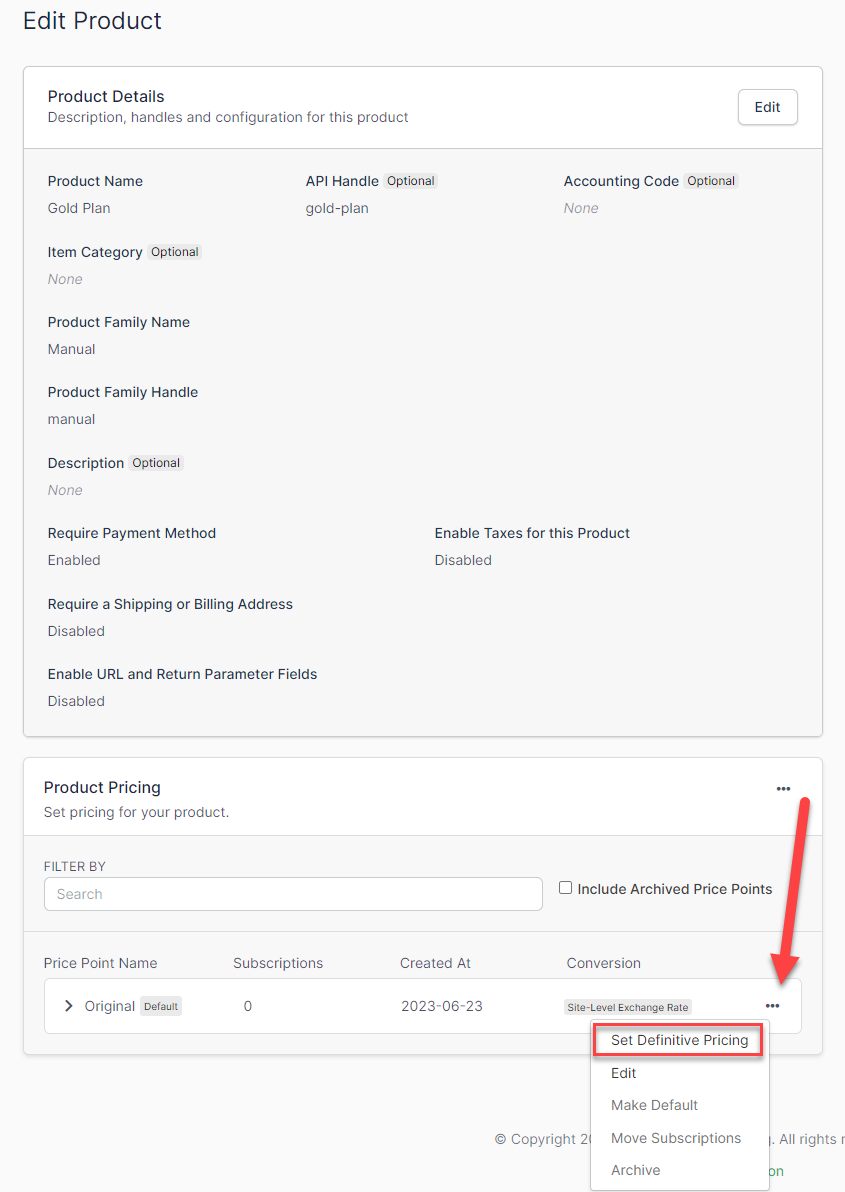
Note: You can specify up to 11 decimal places for currency prices.
Define the converted prices
Beside the currency you added, select Define Converted Prices.
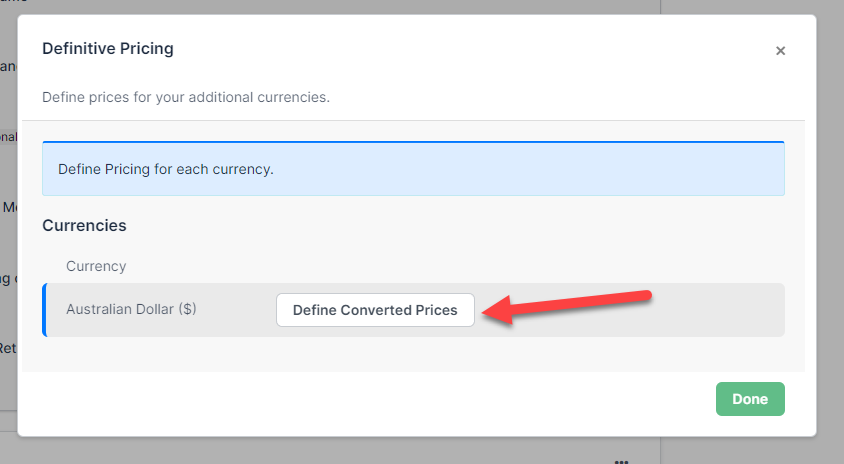
Set the converted price
Enter the amount you want to receive, and Advanced Billing shows the resulting figure in the currency you added.
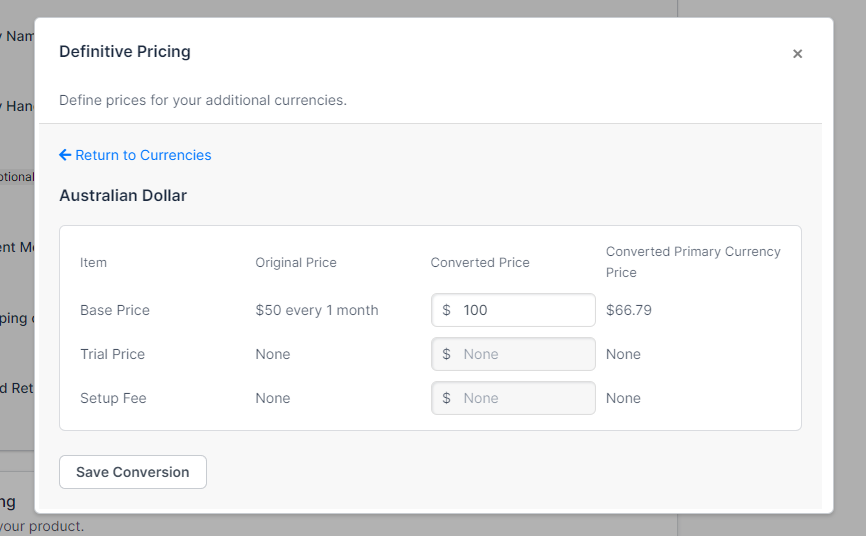
| Field | Description |
|---|---|
| Converted Price | (Required) The amount of money you want to receive in your home currency for this price point. The equivalent amount in your newly added currency appears under Converted Primary Currency Price. |
Related information
To set the language your customers see alongside the currency they're billed in, see the Configure and Implement Multi-Language help article.
Still need help?
Reach out and our support team will take it from here.