
Configure Emails
Last updated on Sep 19, 2026
Advanced Billing sends your customers a set of automated emails about their subscriptions and invoices, and each one is yours to switch on and rewrite. Use this guide to decide which of those emails you need, write their content with Liquid, and set the address they come from.
At a glance
- Feature
- Configure Email Settings
- You Need
- The email address you want to send from in Advanced Billing
- Code
- Liquid syntax, such as
{{name}}, if customizing dynamic language - Difficulty
- ◉◉◎◎◎
1. Determine which automated emails to use
Advanced Billing offers the following email templates, all under Config > Settings > Emails. Switch on the ones that match moments you actually want to notify customers about, rather than enabling everything.
Available email templates
| Best for | |
|---|---|
| Signup Emails | Notifying customers and yourself of signups. |
| Customer Receipt Emails | Notifying customers of payment for their subscription. |
| Card Expiration Emails | Notifying customers when the credit card on file for their subscription is about to expire. These notifications go out on the 1st, 15th, and 23rd of the month. A customer whose card expires 01/2024 receives three emails, on 01/01/24, 01/15/24, and 01/23/24. |
| End of Trial Emails | Notifying customers that their trialing subscription is about to expire. |
| Upcoming Renewal Emails | Notifying customers of an upcoming subscription renewal. |
| Cancellation Emails | Notifying customers that their subscription is canceled. |
| Update Payment Request Emails | Requesting that a customer update the payment details for their subscription. |
| Prepaid Subscription Payment Receipt Emails | Notifying customers of payment for their prepaid subscription. Only available on Sites with the prepaid subscriptions feature enabled. |
| Suspended Prepaid Subscription Emails | Notifying customers that their prepaid subscription is suspended because its prepayment balance is depleted. Only available on Sites with the prepaid subscriptions feature enabled. |
| Reactivated Prepaid Subscription Emails | Notifying customers that their prepaid subscription is reactivated from a suspended state. Only available on Sites with the prepaid subscriptions feature enabled. |
| Billing Portal Invite | Emailing a new customer a link to log in to the Billing Portal. |
| Invoices | Invoice emails. Configured in the Configure Invoices help article. |
| Dunning | Dunning emails sent while a subscription is past due. Configured in the Configure Retries & Dunning help article. |
2. Craft your email
Give the customer exactly the information they need by customizing the email content. Advanced Billing supports dynamic variables and Liquid syntax in email templates, so if your email says {{customer.first_name}}, the sent email contains the customer's actual first name.
Greeting a customer by organization name when one is present, and by first name when it isn't
{% if customer.organization !="" %}
  Hello {{customer.organization}},
{% else %}
  Hello {{customer.first_name}},
{% endif %}
For a starting set of examples, see the Customize Emails with Liquid Examples help article. For the full list of available fields, see the Customize Email Templates help article. For Liquid's own language reference, see Liquid for Designers.
3. Set your from address
One setting covers the from address for every email except dunning emails, which carry their own. Set the Site-wide address first, then override it on individual emails only where you need to.
Set the from address for all emails
Edit your Site settings. On the top menu, click your Site Name > Edit Current Site, then go to the Reply Email section.
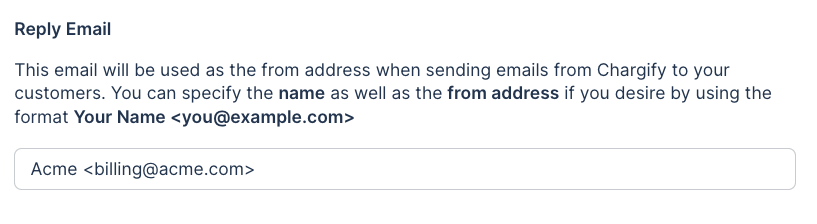
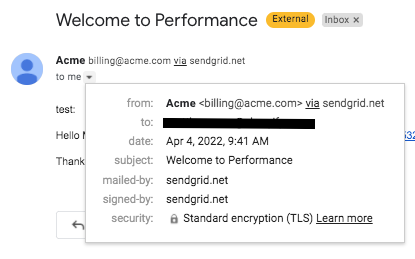
The address you set is what customers see in their inbox.

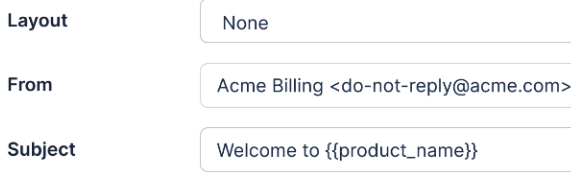
Set the from address for one email
To override the Site-wide value for a specific email, edit the From section's default value of {{from_address}} to the address you want, such as Acme Billing <do-not-reply@acme.com>.
4. Test your emails
Test the scenarios your customers actually hit, rather than relying on the generic Send Preview button in the email templates, which doesn't reflect real data.
- Simulate your scenario, such as a new signup, using realistic data.
- Read the resulting email from your customer's perspective.
- Repeat for each scenario.
As you find things to improve, use the steps above to make the changes.
Related information
To give every email the same branding through a reusable layout, see the Install an Email Template help article.
To send different email content to customers in different languages, see the Configure and Implement Multi-Language help article.
Still need help?
Reach out and our support team will take it from here.