
Understand How Invoices are Generated
Last updated on Aug 29, 2026
An Invoice represents a sale from your company (Merchant) to a Customer, on the Advanced Billing workflow of Maxio. See what triggers an Invoice, the statuses it can hold, its collection methods, and its key dates, so you always know why an Invoice was generated and what to expect from it.
If you use the Maxio workflow instead of Advanced Billing, see Understand Accounting Invoices.
What a rendered invoice includes
A rendered Invoice includes:
- Merchant details (contact and business information)
- Customer details (name, contact information, addresses)
- Line items detailing items sold (quantity, price, description)
- Applied discounts from Coupons
- Applicable taxes on items sold
- Totals and payment summaries
- Invoice status (Open, Paid, Processing, and others)
- Invoice payment and credit history
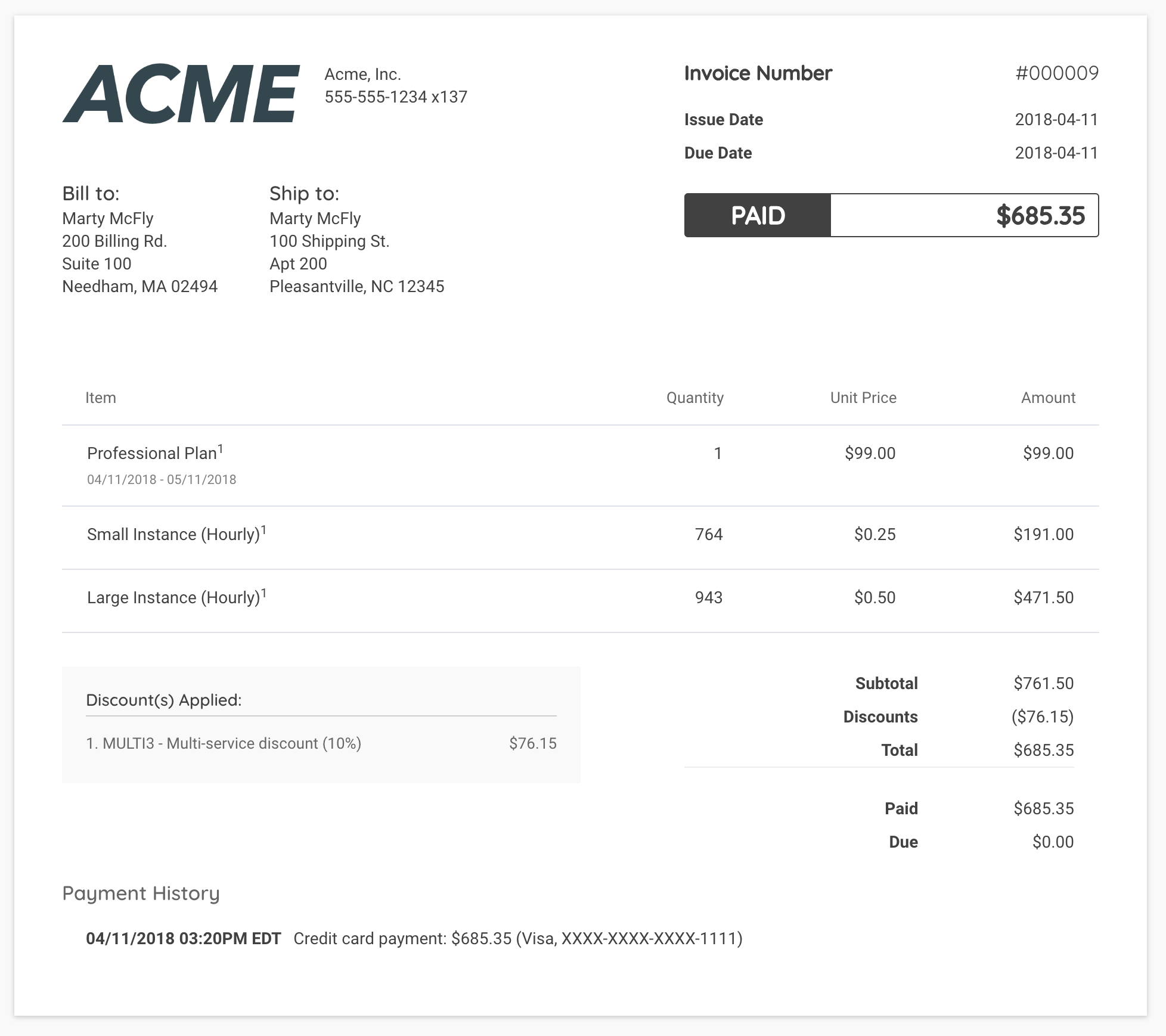
Anatomy of an Invoice
Invoices contain key data, including status, line items, discounts, taxes, and payment details.
| Data | Description |
|---|---|
| Status | Invoices seen by the Customer are usually either Paid or Open (unpaid). See Invoice statuses below. |
| Line Items | Store Plan or Product name, description, service dates, quantity, unit price, and subtotal. A single Plan or Product may generate multiple line items depending on the pricing configuration. |
| Taxes | Tax amounts are stored with the Invoice and displayed at the bottom of the Invoice. |
| Payment Details | Tracks payment, credit, and adjustment history for the Invoice. |
| Discounts | Discounts are derived from Coupons applied to the Invoice. |
| Credit Notes | Formally reverse Invoice charges by referencing prior Invoices. Credit Notes reduce current or future Invoices, and are typically created for Plan downgrades, partial reversals, or applying service credits. |
| Line Item Break Downs | Tiered and volume-based pricing may generate multiple line items or detailed breakdowns for usage-based Prepaid Products. |
Invoice statuses
Invoices in Advanced Billing can have the following statuses:
- Draft: Not yet issued. Line items can still be added or edited.
- Pending: Scheduled but not yet issued, often during proration accumulation.
- Processing: Payment initiated, confirmation pending (for example, Direct Debit).
- Open: Issued and awaiting payment.
- Paid: Fully paid, no further action required.
- Voided: Manually canceled by a Merchant. Excluded from revenue metrics and no longer eligible for payment.
- Canceled: Uncollected revenue from a canceled Subscription.
- Collections: Unpaid after dunning, moved to collections.
- Disputed: Under payment dispute or chargeback review.
Advanced Billing also uses Needs Approval and Unpaid for less common situations not covered here.
Collection methods
Subscriptions use one of three collection methods: Automatic, Remittance, or Prepaid (usage-based Subscriptions only). At the Invoice level, Advanced Billing supports two collection methods, Automatic and Remittance. Prepaid Subscriptions generate Invoices with an Automatic collection method.
Each Subscription inherits a default collection method from site settings, which can be overridden at creation or per Subscription.
| Collection Method | Description |
|---|---|
| Automatic | Advanced Billing attempts to collect payment automatically from a payment method on file (credit card or ACH) when the Invoice is issued. |
| Remittance | Advanced Billing does not attempt to automatically collect payment. Instead, your Customer remits payment on the Invoice, often in the form of a check or bank draft, in response to receiving the Invoice. |
| Prepaid | Advanced Billing collects an initial prepayment, which is used to fund a usage-based Subscription. Further usage pulls from the prepayment balance until it reaches $0 and suspends, or auto-replenishes. |
The default collection method is controlled in your site's invoice settings. The collection method may also be set on a per-Subscription basis from the Subscription Summary page.
To change an individual Subscription's payment method after signup, from the Subscription Summary page, on the Payment Method line item, select Change. On the Edit Payment Method page, toggle between Automatic Payment and Manual/Remittance Payment.
Prepaid Subscriptions are the exception. A Prepaid Subscription's collection method can't be changed, and Subscriptions with other collection methods can't switch to Prepaid.
For Invoices in the open or canceled status, you may shift the payment method from Automatic to Remittance. When viewing an Invoice in one of these statuses, select More Options -> Change Collection Method.
This workflow is not available for consolidated Invoices, and can't change a Remittance Invoice to Automatic.
When invoices are generated
Advanced Billing generates an Invoice when any of the following occur:
- Subscription creation
- Start of a new billing period (of at least one Plan or Product)
- Product allocation increases (provided proration is selected)
- Plan migrations
- Ad-hoc invoices
Issue Date and Due Date
Invoices advertise two main dates, the Issue Date and the Due Date.
- Issue Date is the date the Invoice is made available for payment. This happens after all line items have been added.
- Due Date is the date the Invoice payment is due.
The Due Date field may be controlled for renewals through Net Terms, and optionally for remittance signups. This means payment isn't attempted until the specified date, and dunning follows if the payment fails. When creating Ad-hoc Invoices, you may set a due date of your choice.
Invoices and dunning
Each Invoice follows its own payment and dunning process. If a Subscription's payment method changes, new Invoices follow the updated method, while existing Invoices continue under their original terms. Automatic Invoices enter dunning only if a payment attempt fails.
Example: A Subscription is set to Remittance billing at sign-up. The first Invoice generated, INV-A, is treated as Remittance. Soon after, the Subscription changes to Automatic while INV-A is still unpaid. When the next renewal comes around, if the payment fails for INV-B, the Subscription is pushed into dunning. This Customer is only responsible for paying INV-B to return to an active state. INV-A is Remittance, so it isn't included in the count of open Automatic Invoices.
Automatic Invoices may be modified to Remittance through an option that appears on the Invoice. See Collection methods above.
Related information
To learn how to manually cancel an Invoice, see Void an Invoice.
To understand how a consolidated Invoice groups multiple Invoices into one, see Consolidate Subscription Groups.
Still need help?
Reach out and our support team will take it from here.