
Configure Direct Debit Settings
Last updated on Sep 19, 2026
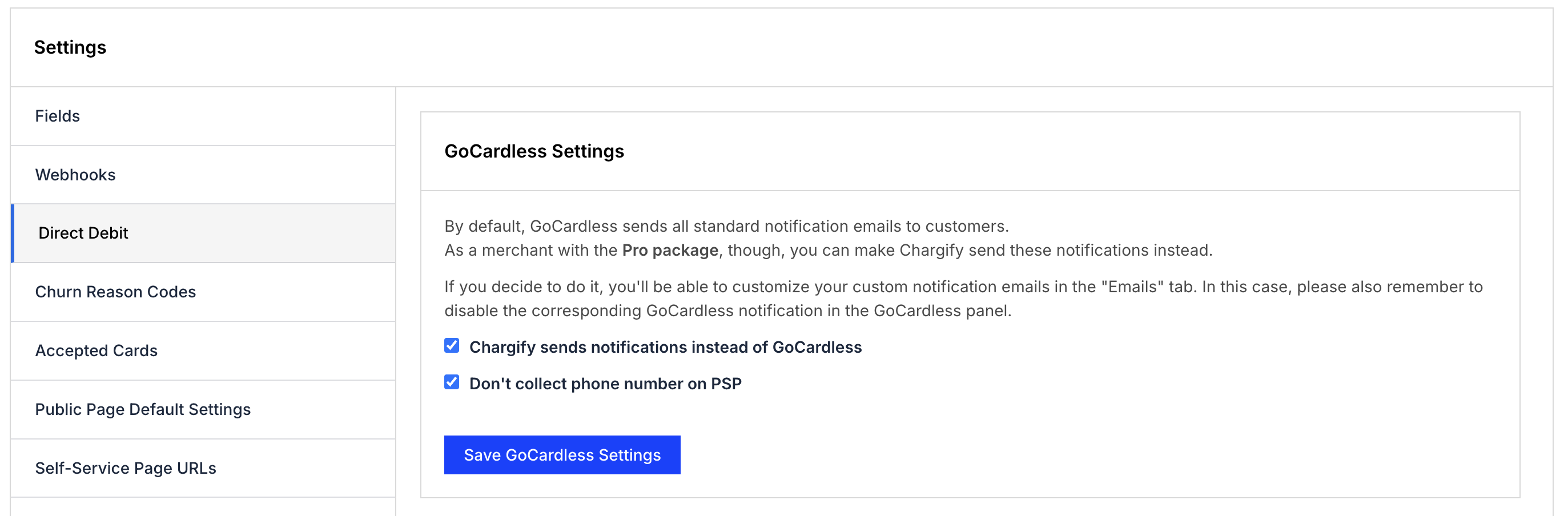
By default, GoCardless sends all standard notification emails to your customers directly. If you're on the GoCardless Pro package, you can have Advanced Billing send those notifications instead, which lets you control their wording and branding alongside your other emails.
Before you start
These settings apply to sites using GoCardless for Direct Debit. Changing them requires the account permission described as manages product catalog, settings, and integrations.
Go to Config > Settings > Direct Debit to reach the GoCardless Settings section.
Important: If you switch notifications over to Advanced Billing, disable the corresponding notification in your GoCardless panel. Otherwise your customers receive both.
Send notifications from Advanced Billing
Select Maxio Advanced Billing sends notifications instead of GoCardless to take over notification delivery. You then customize the wording in your email templates, the same way you edit any other email.
This option appears only on sites using the GoCardless BECS NZ or BECS (Australia) scheme.
For how to edit the resulting Direct Debit Instruction template, see the Configure Email Settings help article.
Stop collecting a phone number
Select Don't collect phone number on PSP to remove the phone number requirement from your Public Signup Pages.
This option also appears only on sites using the GoCardless BECS NZ scheme.
Related information
For how to connect and configure GoCardless itself, see the GoCardless help article.
Still need help?
Reach out and our support team will take it from here.