
Customize Invoice and Credit Note Text
Last updated on Sep 19, 2026
Almost every fixed label on an Invoice or Credit Note can be replaced with wording of your own, from the document title down to the column headings on each line item. Each override is called a Custom Translation. Go to Config > Settings > Language Settings, which requires the permission described as manages product catalog, settings, and integrations.
This pane is only available on sites using Relationship Invoicing. To supply these labels in more than one language, see the Understand Multi-Lingual Invoices help article.
Custom Translations
Below is an image with numerical keys followed by descriptions of the elements you can override, along with their default values.
If you don't set a Custom Translation, the default value applies.
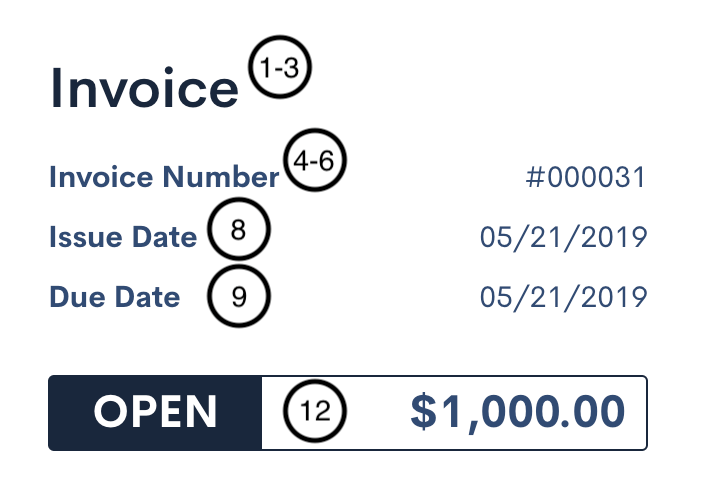
Each numbered field is described below:
- The title of the Invoice. Default: “Invoice”
- The title of the Invoice Segment. Default: “Segment”
- The title of the Credit Note. Default: “Credit Note”
- The serialized number of the Invoice. Default: “Invoice Number”
- The serialized number of the Invoice Segment. Default: “Segment Number”
- The serialized number of the Credit Note. Default: “Credit Note Number”
- (Not pictured) The original Invoice Number associated with the Credit Note. Default: “Original Invoice Number”
- The issue date of the Invoice. Default: “Issue Date”
- The due date of the Invoice. Default: “Due Date”
- The status of the Invoice. Every status label below is customizable:
- “DRAFT” - The Invoice is in a draft state and has not been sent.
- “OPEN” - The Invoice is in an open state and can be paid.
- “PAID” - The Invoice has been paid.
- “VOIDED” - The Invoice has been voided.
- “PENDING” - The Invoice is pending and not yet due.
- “PROCESSING” - Payment for the Invoice is in progress.
- “APPLIED” - A Credit Note status, not an Invoice status: the Credit Note has been applied to an Invoice.
- “CANCELED” - The Invoice was canceled due to a Subscription cancellation.
- “COLLECTIONS” - The Invoice has been sent to collections.
- “DISPUTED” - The Invoice is subject to a payment dispute.
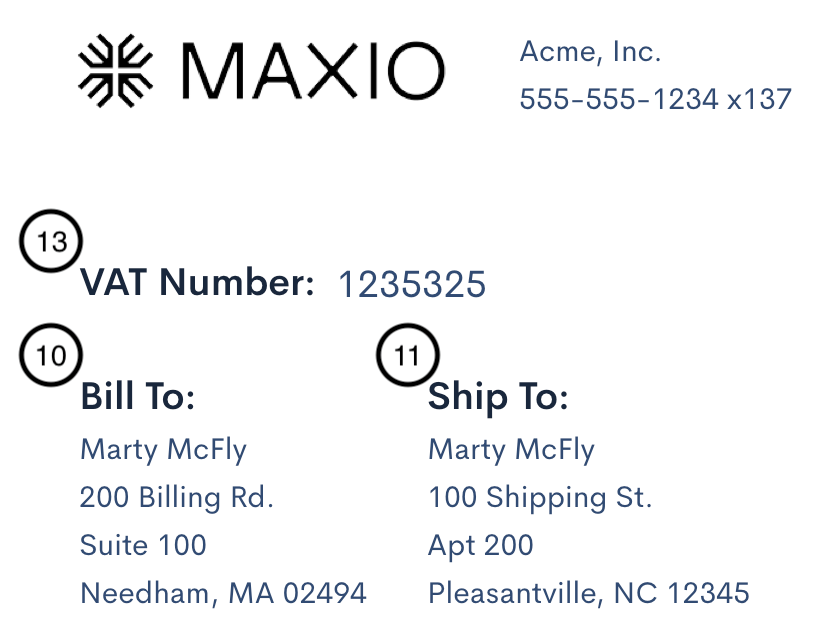
Each numbered field is described below:
- The “Bill To” label. Default: “Bill To”
- The “Ship To” label. Default: “Ship To”
- The VAT Number label. Default: “VAT Number”
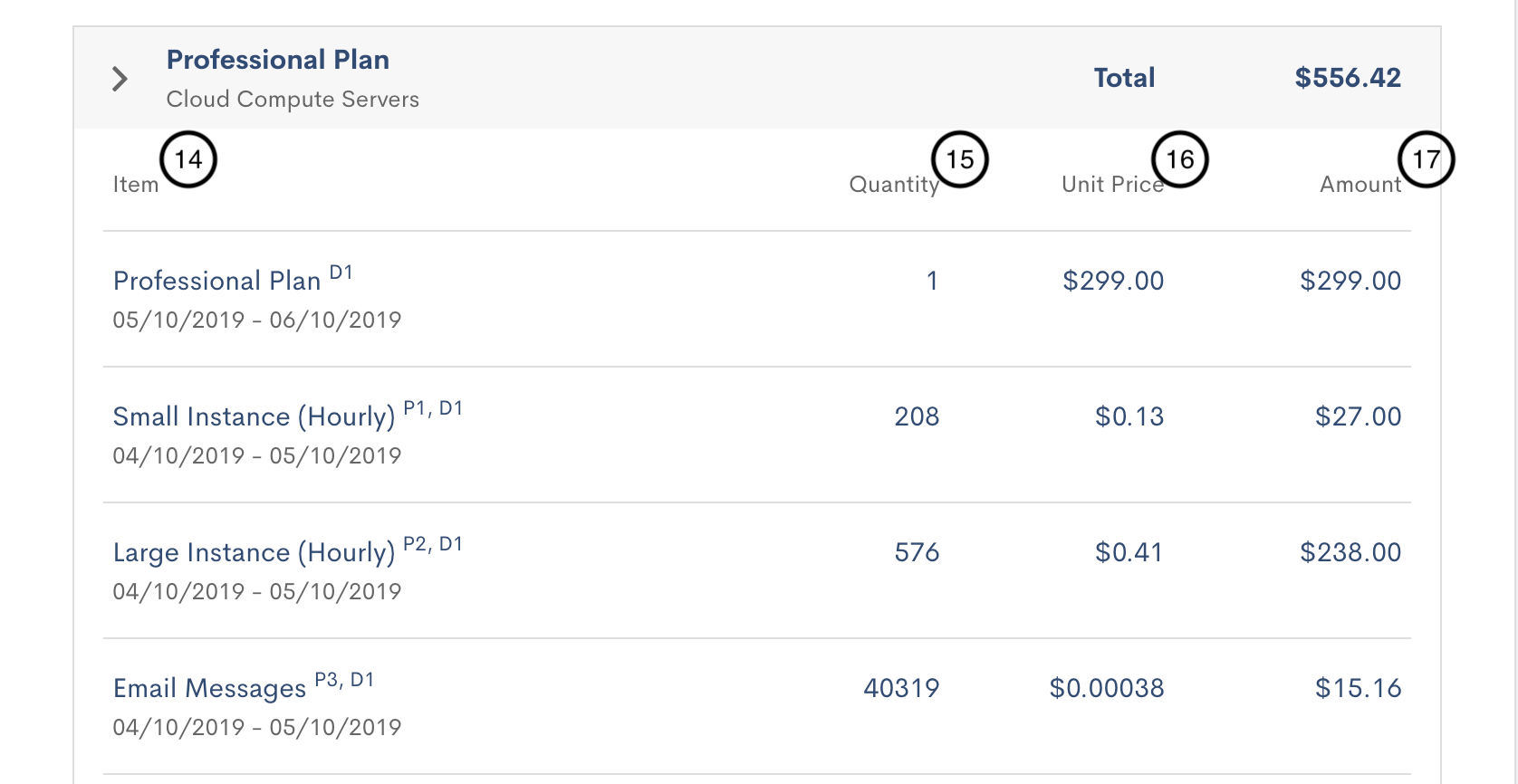
Each numbered field is described below:
- Item label in line item breakdown. Default: “Item”
- Quantity label. Default: “Quantity”
- Unit Price label. Default: “Unit Price”
- Amount label. Default: “Amount”
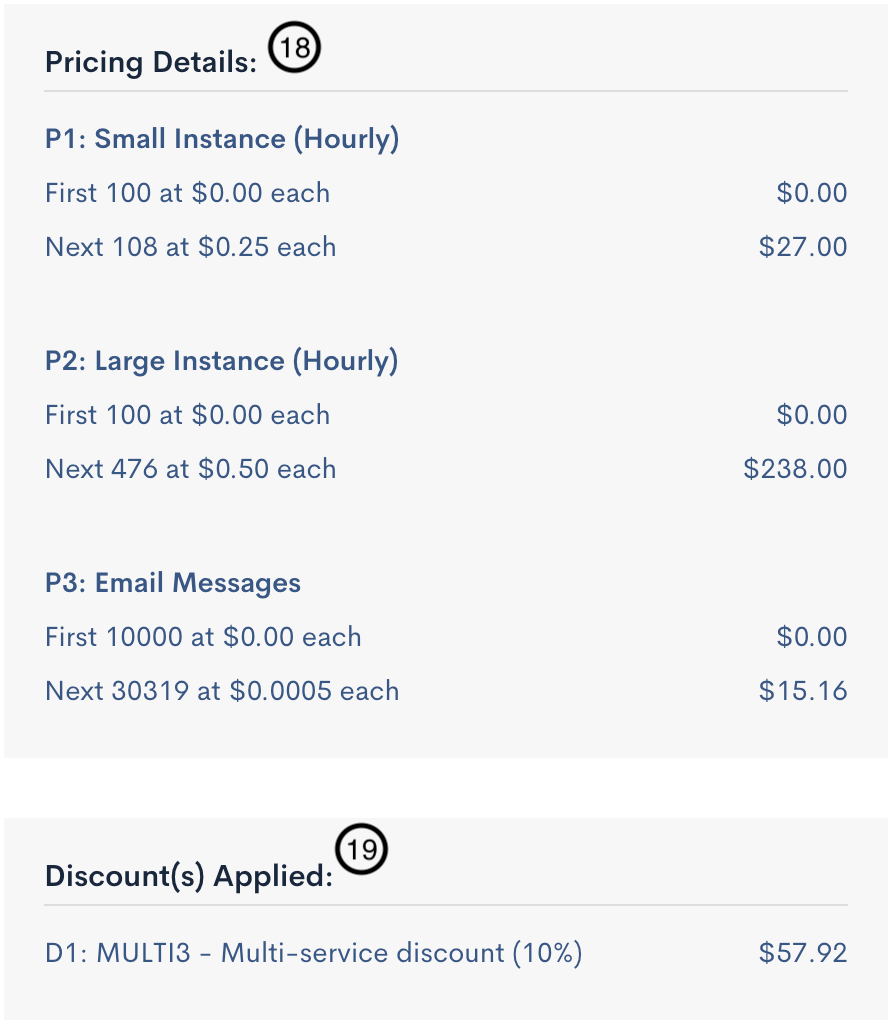
Each numbered field is described below:
- Pricing Details section header. Default: “Pricing Details”
- Discount section header. Default: “Discount(s) Applied”
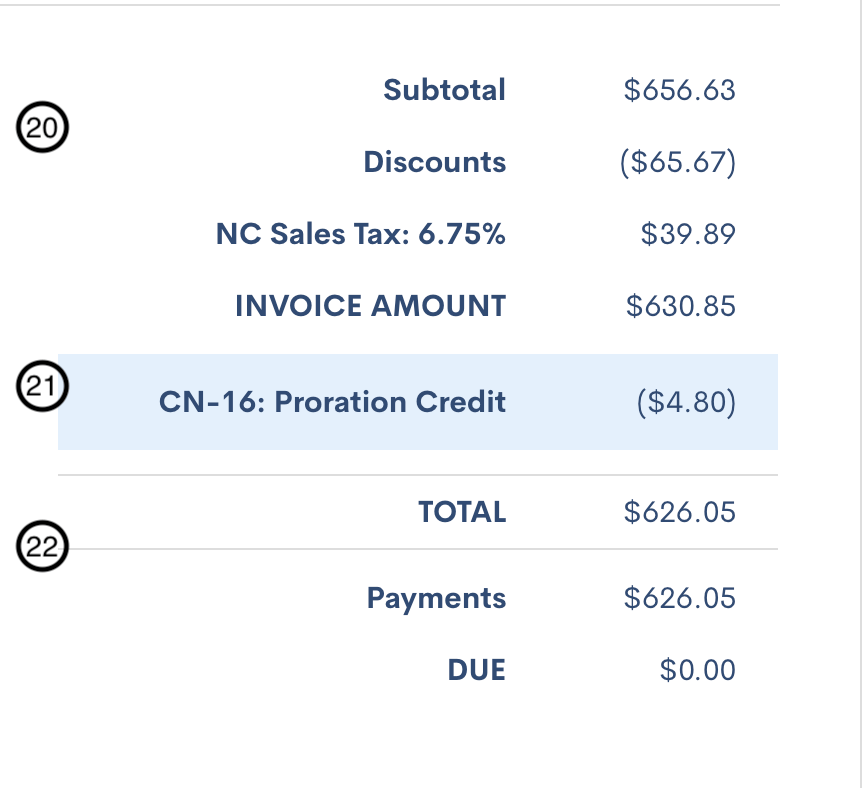
Each numbered field is described below:
- Subtotal summary. Defaults include:
- “Subtotal” - Total of all positive charges.
- “Discounts” - Any applied discounts.
- “INVOICE AMOUNT” - Total of all subtotal items.
- Credit summary. Defaults include:
- “Proration Credit” - Credit from Subscription proration.
- “Service Credit” - Merchant-added service credit.
- “Partial Void” - Credit due to partial voiding.
- “CREDIT NOTE AMOUNT” - Merchant-created Credit Note.
- “Applied” - Applied Credit Note amount.
- “Remaining” - Remaining Credit Note balance.
- “APPLIED TO INVOICE” - Applied to an Invoice.
- “TOTAL CREDIT” - Total Credit summary.
- “Credit Applied to Date” - Total credit applied.
- “Credit Remaining” - Total credit remaining.
- Grand total summary. Defaults include:
- “Refunds” - Total refunds on the Invoice.
- “TOTAL” - Invoice total.
- “Payments” - Applied payments.
- “DUE” - Current due amount.
- “GRAND TOTAL” - Total including all credits/refunds.
- (Not pictured) Message when no line items exist. Default: “No charges this period”
- (Not pictured) Consolidation message. Default: “This segment is consolidated with”
Fields not shown on the example Invoice
The numbered items above cover a standard Invoice. Several other labels are customizable in the same table, and appear only on documents that use them:
- Debit Notes - The document title, default “Debit Note”, and its number, default “Debit Note Number”.
- Purchase Order Number, default “Purchase Order Number”, and Customer Reference ID, default “Customer Reference ID”.
- List Unit Price, default “List Unit Price”, shown alongside Unit Price where list pricing applies.
- VAT Rate, VAT Amount, and Gross Amount, for tax-inclusive Invoices.
- Tax Breakdown, Previous Balance, Invoice History, Payments This Period, Invoice Memo, and Payment Instructions.
- Prepayment history labels, covering usage charges, prepayments, and starting and ending balances.
- Metered Usage (Not Billed) section header, default “Metered Usage (Not Billed)”, shown on Invoices that include unbilled metered usage.
- Chargeback and refund labels, defaults “Chargeback - Won” and “Refund”.
See the Manage Invoices Settings help article for the rest of your Invoice configuration.
Proforma translations
Proforma-specific labels sit at the bottom of the Custom Translations table. Customizing a single field updates both the Proforma Preview and the Proforma Invoice, though many fields don't appear in the preview.
Below is a Proforma Preview header example:
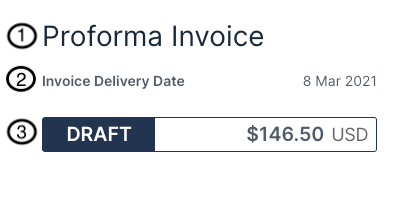
Each numbered field is described below:
- The title of the Proforma Invoice.
- The anticipated generation date of the final Invoice.
- The Proforma Preview status, always shown as “draft”.
Below is the header for a Proforma Invoice:
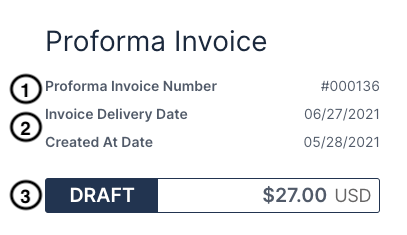
Each numbered field is described below:
- The number of the Proforma Invoice.
- The anticipated generation date of the final Invoice, and the Proforma Invoice generation date.
- The status of the Proforma Invoice. Defaults: “draft”, “voided”, “archived”. Each label is customizable.
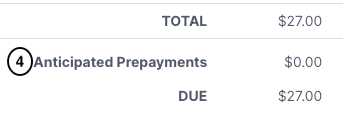
Each numbered field is described below:
- Total anticipated prepayments.
Also note the following:
- Title of the Proforma Invoice Segment
- Number of the Proforma Invoice Segment
- Message indicating consolidation with other Invoices
Related information
To translate Invoices into a Customer's own language rather than reword the English, see Understand Multi-Lingual Invoices.
For the full set of Site settings this sits among, see Understand Advanced Billing Site Settings.
Still need help?
Reach out and our support team will take it from here.