
Configure CSV Export Settings
Last updated on Sep 19, 2026
Subscription CSV exports carry a standard set of columns. Three optional additions have to be switched on first, because each one adds work to every export.
Where these settings live
Go to Config > Settings > CSV Exports, under Subscription Exports, which requires the permission described as manages product catalog, settings, and integrations. On sites using productless subscriptions, this pane refers to Products rather than Components.
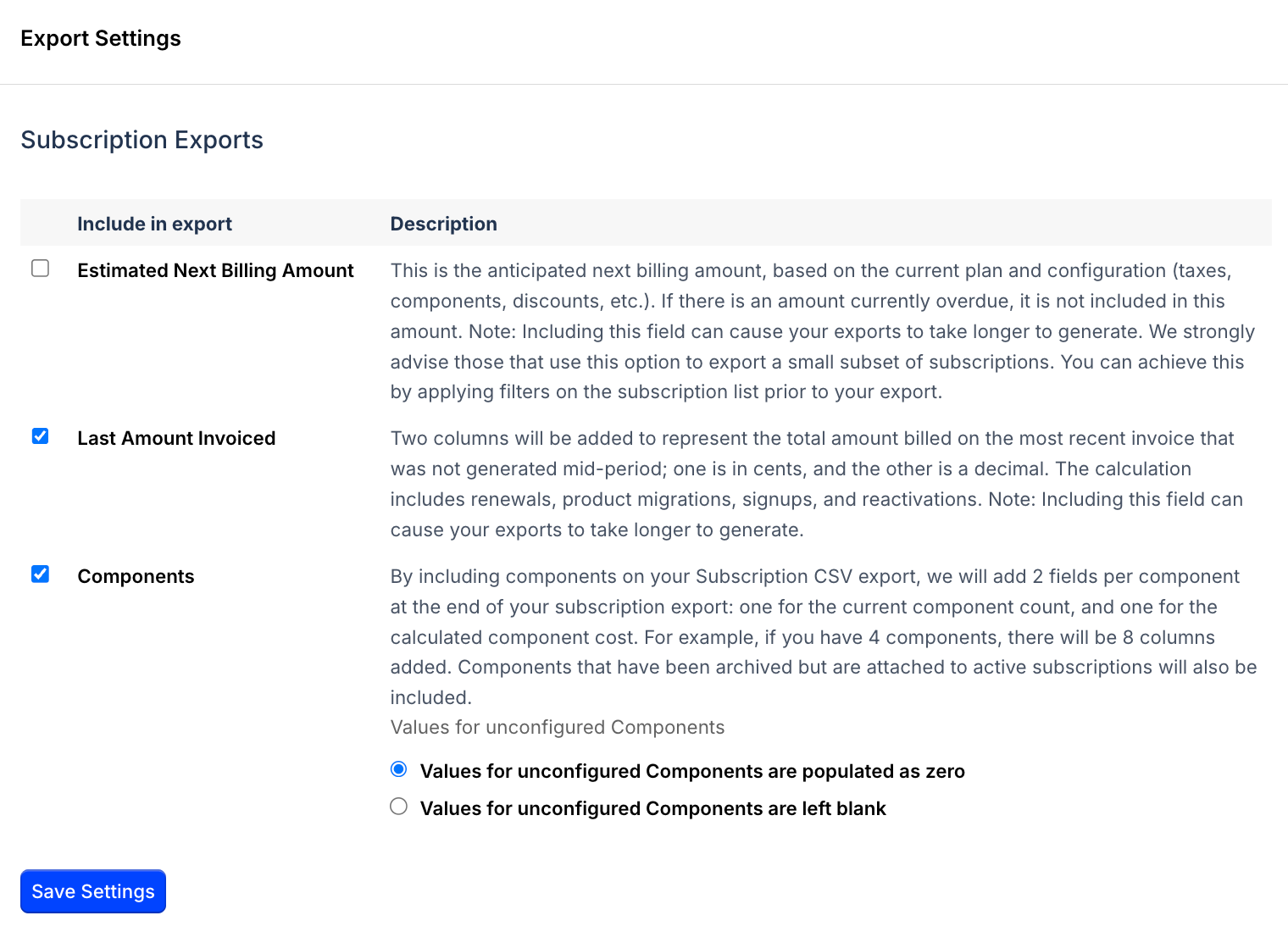
Estimated Next Billing Amount
This is the anticipated next billing amount, based on the current plan and configuration (taxes, components, discounts, etc.). If there is an amount currently overdue, it is not included in this amount.
Including this field can cause your exports to take longer to generate. We strongly advise those that use this option to export a small subset of subscriptions. You can achieve this by applying filters on the subscription list prior to your export.
Last Amount Invoiced
This is the total amount billed on the most recent invoice that was not generated mid-period; as such, it includes renewals, product migrations, signups, and reactivations. It also discounts invoices that have been voided, and any invoices in a pending state. It's available on statement architecture, for both automatic and invoice billing subscriptions, and on Relationship Invoicing.
The amount is included in two columns. The first, “Last Amount Invoiced In Cents”, reflects the value in cents; the second, “Last Amount Invoiced,” represents the value as a decimal. Neither carries a currency marker, but a separate column in the export indicates the subscriber's currency.
Including this field can cause your exports to take longer to generate, especially on statement-based architecture, due to the calculation required per subscription.
Components
Including components on your subscription CSV export adds two fields per component at the end of the export: one for the current component count, and one for the calculated component cost.
For example, 4 components add 8 columns. Components that have been archived but are still attached to active subscriptions are included too.
Choose how unconfigured component values appear
Admins can control how unconfigured Components are represented in the Subscription CSV export. This setting helps distinguish between components explicitly set to 0 and those not configured at all, improving downstream reporting accuracy.
When Components is checked, two radio options appear:
- Values for unconfigured components are populated as zero (default)
- Values for unconfigured components are left blank
The selected radio option determines how unconfigured component columns are populated in the export:
| Radio Option | Export Behavior |
|---|---|
| Values for unconfigured components are populated as 0 | Appends component columns; unconfigured values appear as 0. |
| Values for unconfigured components are left blank | Appends component columns; unconfigured values are blank (empty). |
Run the Subscription CSV export. It reflects the option you selected for unconfigured components.
Best practices
How you set these options affects what downstream tools can tell apart, so a few habits are worth adopting.
- Choose blank for unconfigured components if you need to distinguish between missing data and explicit zero values in downstream analytics.
- Verify your export after changing settings to ensure the output matches your reporting requirements.
- If using Product-based subscriptions, confirm that the setting applies as expected (Products instead of Components).
Related information
For the full list of settings available for your site, see the Understand Advanced Billing Site Settings help article.
Still need help?
Reach out and our support team will take it from here.