
Configure Churn Reason Codes
Last updated on Sep 19, 2026
Churn Reason Codes in Maxio allow you to track the specific reasons why a Subscription was canceled. This feature improves churn analysis, enhances customer feedback tracking, and supports better reporting. These codes can be displayed in the application, shown in the Billing Portal, or added via the API during the cancellation process.
Configure your codes
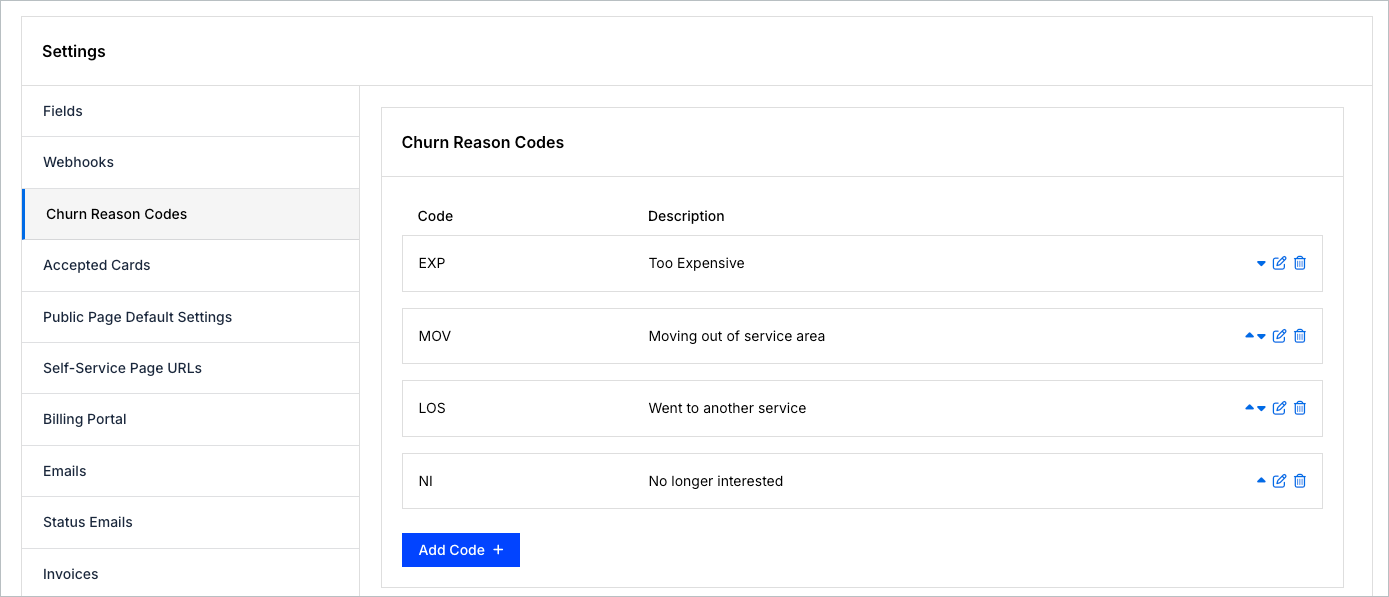
Create, edit, sort, and delete these codes under Config > Settings > Churn Reason Codes. Reaching Config > Settings requires the account permission described as manages product catalog, settings, and integrations, but creating, editing, sorting, and deleting the codes themselves requires the permission described as manages subscribers and customers. Sorting them changes the order they appear in when someone cancels a Subscription.
Where the codes appear
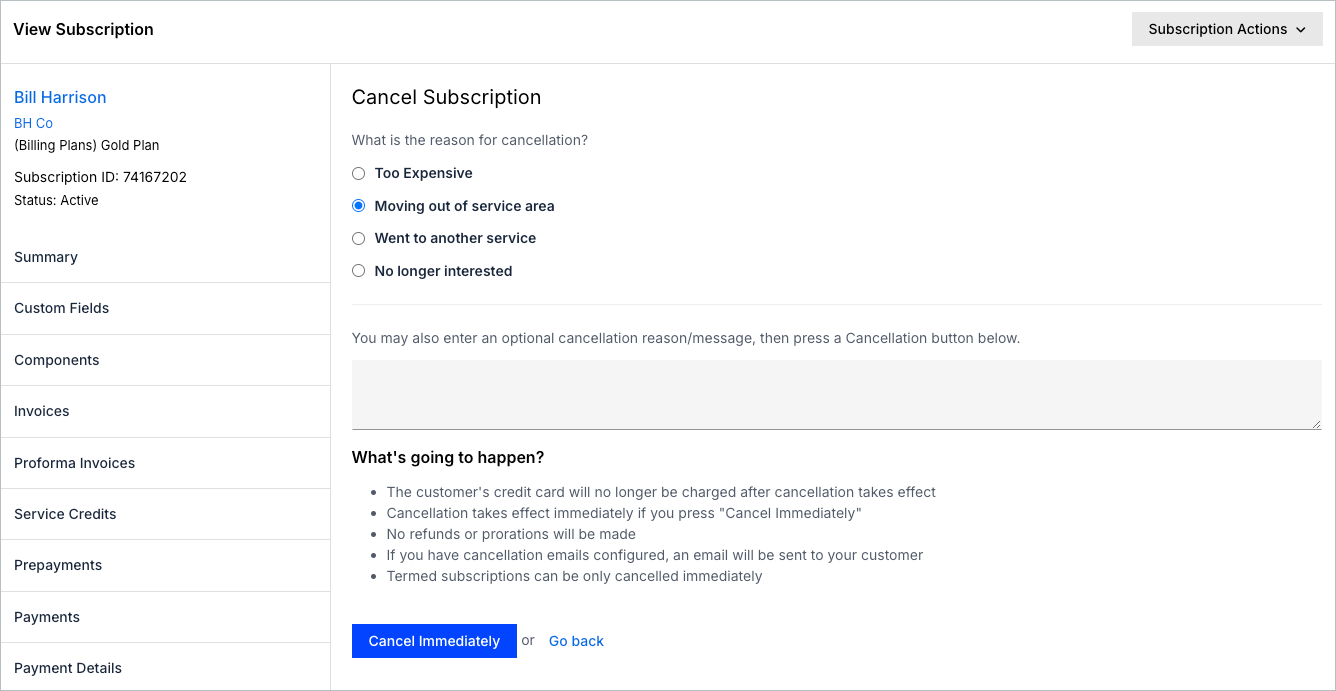
The codes appear when you cancel a Subscription from its summary, and on the Billing Portal's own cancellation screen when that option is enabled in your Billing Portal settings. See the Understand the Billing Portal help article.
After a subscription is canceled
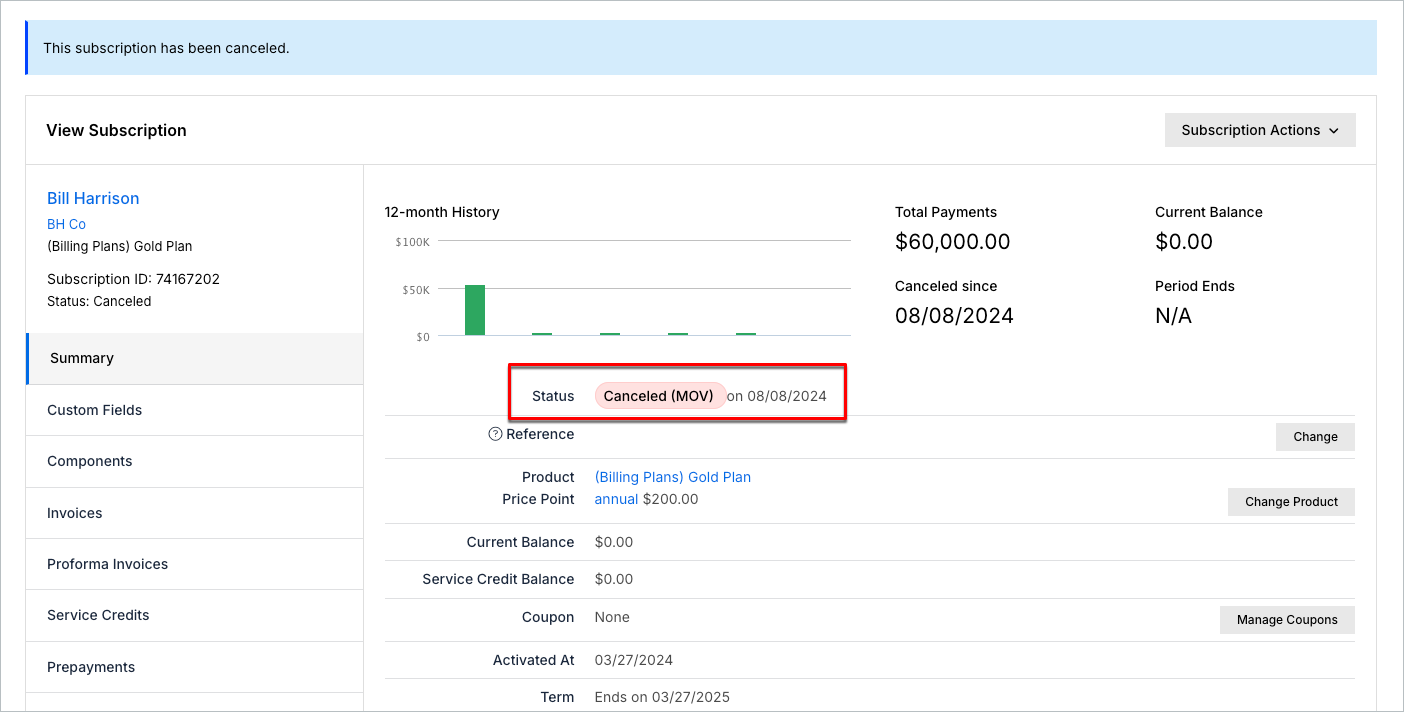
Once a Subscription has been canceled and a Churn Reason Code has been supplied, the code appears in the Subscription’s summary status in the application:
Related information
For the full list of settings available for your site, see the Understand Advanced Billing Site Settings help article.
Still need help?
Reach out and our support team will take it from here.